Blog
Designing Tactic Remote 1.12: continuing a task as the layout changes
From reading a reply to adding a requirement: how 1.12 arranges panels, retains task context, and coordinates terminal size with input.
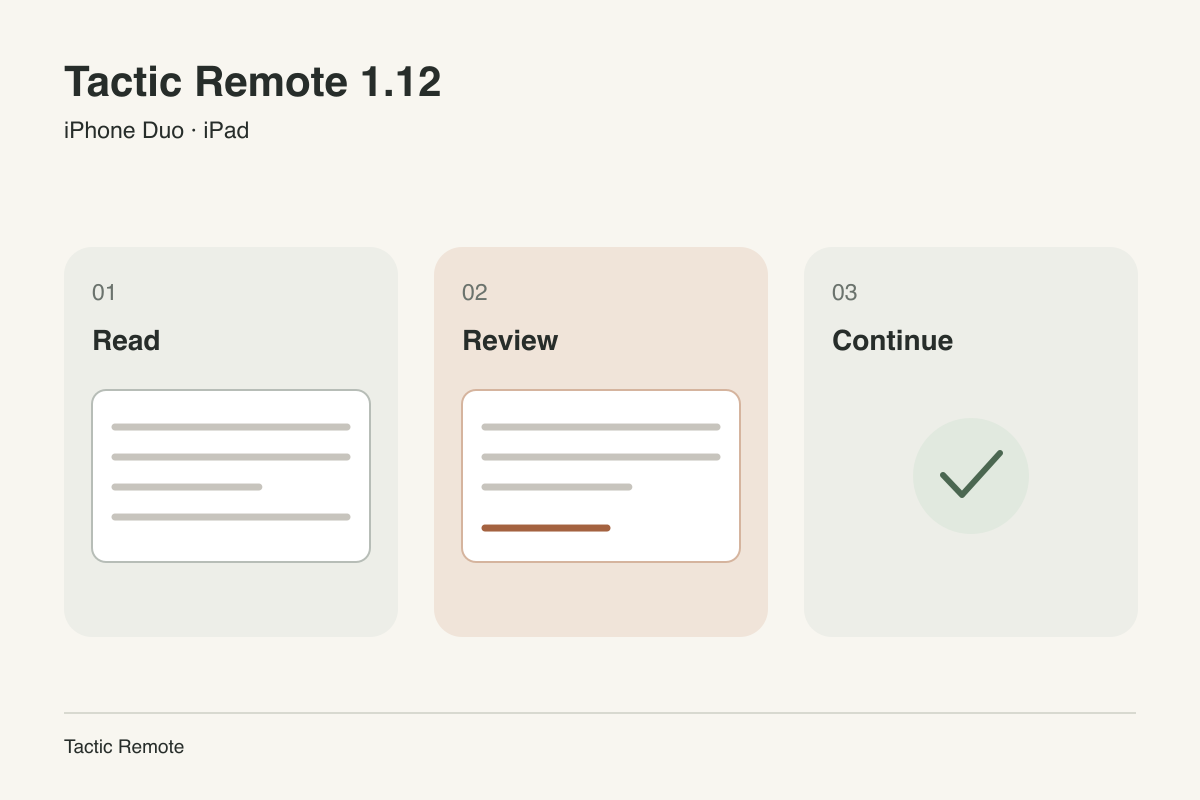
When following a Claude Code or Codex task from your phone, a reply is often the start of the next step. You read a test result, open the screen to consult the project, and add another requirement. You might also switch to another app to copy an error before coming back.
We want those actions to continue around the existing task. Tactic Remote 1.12 focuses on the details within that journey: where the conversation stays, where project context belongs, and what happens to text being sent when the screen changes.
Start with the reply being read
Take the date-export task in the screenshots. Its follow-up instruction is:
Keep the existing settings. Fix the empty-date export case, add a regression test, and report the result before committing.
On the closed outer display, the immediate need is to read the instruction and reply. Narrower views give most of the space to the conversation, with drawers available for finding projects or sessions. Reading and composing stay in the current conversation, while supporting information appears when needed.
This also defines what should survive a layout change: the conversation, a half-written draft, the reading position, and an open panel. 1.12 preserves those view states as the size changes, so opening the screen lets the next action follow the one before it.
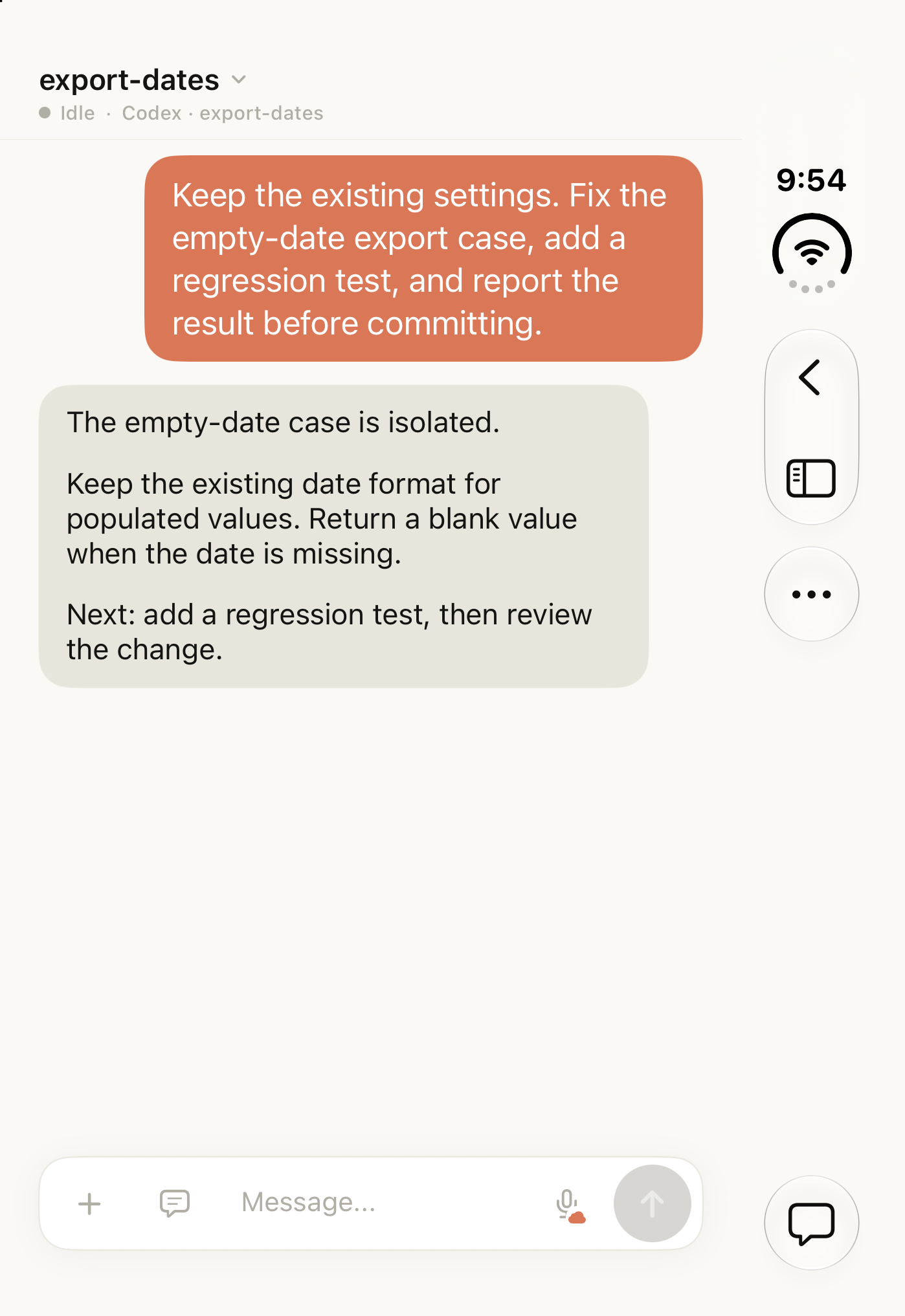
Closed Duo simulator, outer display, running 1.12. The conversation uses demonstration data; no agent task was executed.
Keep the workspace close, with room for the reply
After reading, you may want to consult the project and branch. The open inner display can keep the workspace on the left and the conversation on the right. In the date-export example, the export-dates session and branch sit beside the reply, giving the request for another test a visible context.
In a flat view with enough room, the workspace takes a sidebar’s width and the conversation gets the remaining space. When the system reports an active vertical fold, that region determines the division instead. The project list needs to be recognizable, and the conversation needs room for a complete paragraph.
The expanded screenshot shows that relationship: context on the left, continued reading on the right. Selecting a different session changes the task; changing the available space retains the current session’s content and input state.
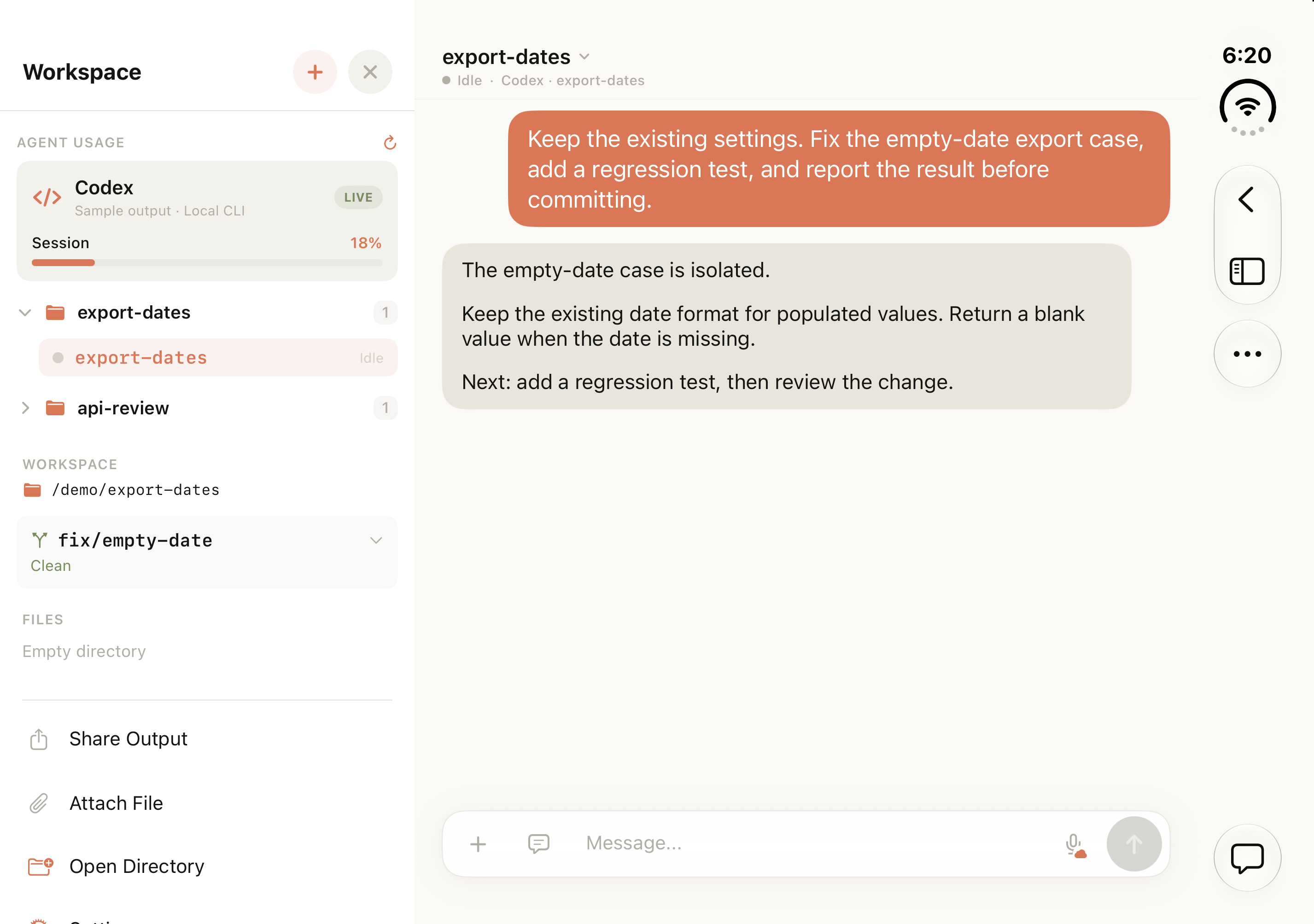
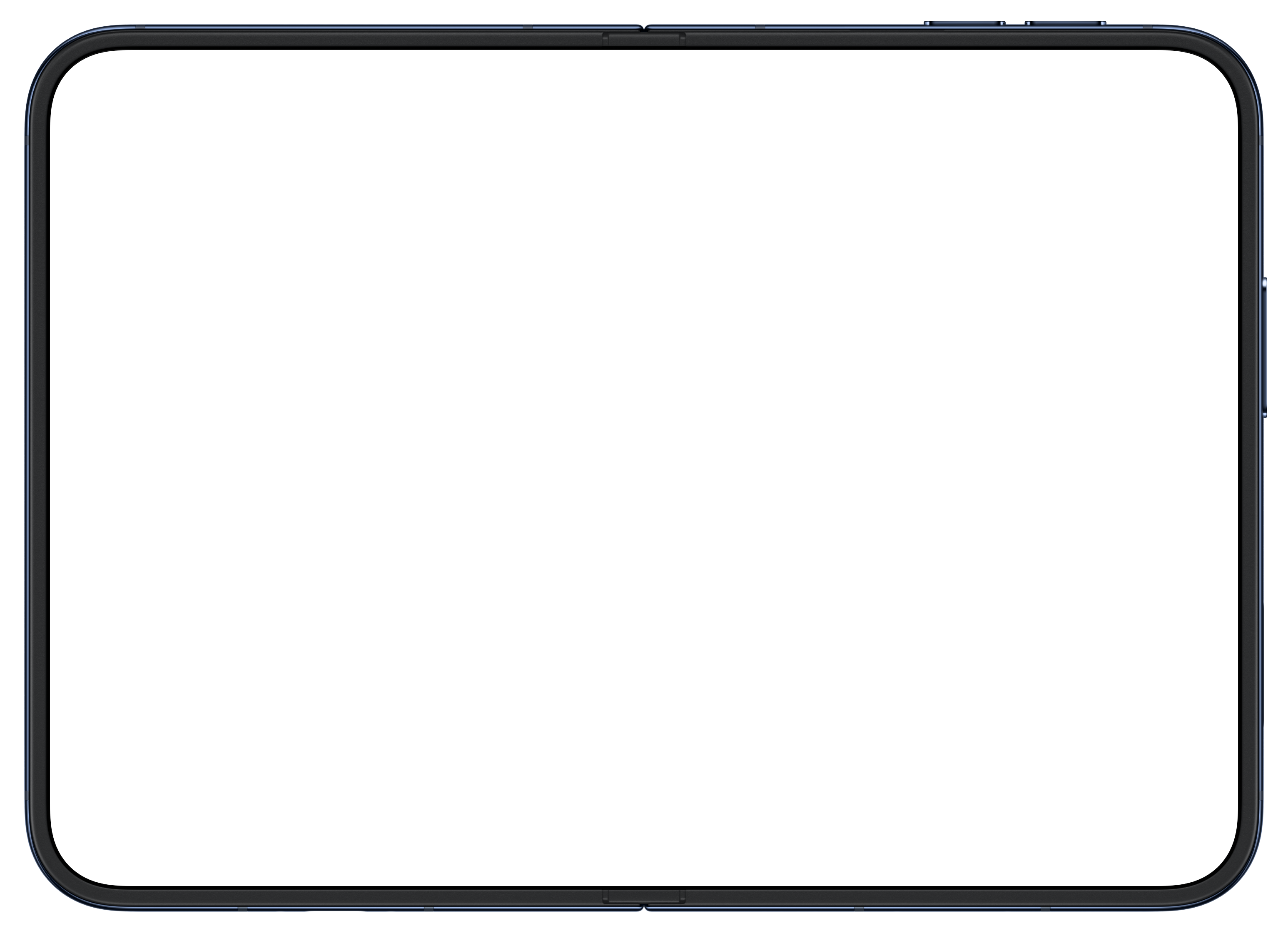
Fully open Duo simulator, inner display. Conversation, workspace, and usage values are demonstration data; no agent task was executed.
Let the current space determine the layout
Closing, opening, rotating, and resizing all change the space a view can use. 1.12 bases its layout on the current container’s dimensions and system-provided fold information. Readable panels can sit side by side; narrower views use drawers. With an active horizontal fold and sufficient room above and below it, the conversation and controls can also occupy separate upper and lower areas.
The same reasoning applies to iPad windows. Whether a narrowed window can still hold two panels depends on the space it has at that moment. The panel arrangement follows the window while the existing task context remains.
The fold region adds a concrete constraint: controls need to stay clear of the area identified by the system. We use that position to arrange the gap, while keeping content views stable as dimensions change. This reduces the effect that recreating a view could have on a draft, focus, or reading position.
A wider terminal needs its existing output redrawn
Conversation text can reflow, but the terminal has another relationship to maintain: it works in character columns. When the view on the phone becomes wider, the computer also needs the new column count so previously displayed output can be redrawn at that width.
Opening the device or animating a sidebar produces several intermediate sizes. If size requests are sent together, they can reach the computer in a different order and leave the terminal at a transitional width. 1.12 sends one size request at a time and keeps following the latest dimensions. Once the width settles, it refreshes the current terminal picture.
The keyboard is a different case. It usually changes the number of visible rows while leaving the column count intact. For height-only changes, 1.12 keeps the terminal stream, reducing a reconnection caused solely by a change in visible rows.
When text is being sent, the refresh waits
A long paste reaches the terminal in chunks. Rotate the device or open a panel during that paste, and two things need coordinating: finishing the input and fitting the output to the new width.
1.12 makes the order explicit: finish queued keystrokes and paste chunks first, then refresh for the width change. Changing the layout therefore does not cancel unfinished input by rebuilding the terminal stream too early.
The third screenshot shows the native terminal and its keyboard controls. Conversation view is suited to reading instructions and replies; terminal view provides raw output and terminal keystrokes. Both are ways of following the same computer task. Input alignment and sidebar spacing changes also keep those areas orderly at different sizes.
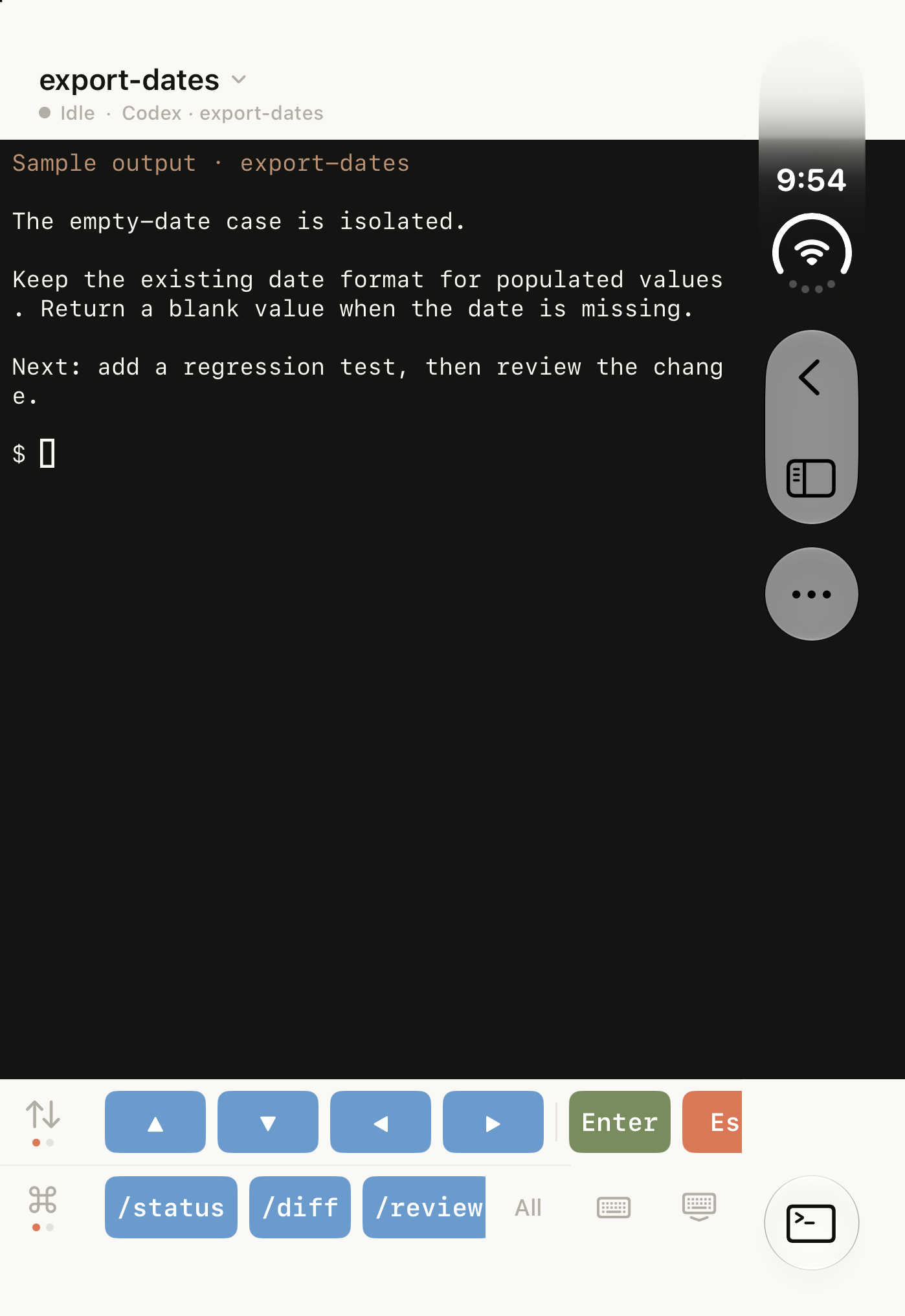
Native terminal view in the Duo simulator. The output is local sample data; no agent task was executed.
Make connection state clear on returning
Other actions can interrupt a follow-up. For example, you might leave to copy an error before a connection finishes. 1.12 cancels unfinished attempts on background entry, preventing one from becoming connected after the app has left the foreground. It also avoids starting new attempts in the background.
On returning, the current connection and latest output show where things stand. The agent process runs independently on the computer; viewing and controlling it still depend on the computer, network, and process being available. If output is waiting at a project-trust or sign-in prompt, the agent waiting-state guide explains those cases.
Some details need the computer companion too
The phone presents output and accepts input; the companion connects them to the terminal and agent. This update also improves Mac/Linux handling of multibyte characters, including Chinese text and emoji, when output arrives across read boundaries. It improves cursor placement when restoring the terminal picture, alongside session recovery, input handling during agent startup or waiting, and duplicate notifications.
These changes require updating the companion installation you use. With the Mac app, update the app and its embedded service; with a standalone CLI, update that installation. Windows continues on its separate Preview schedule.
Download the current release for each platform from the download page. Windows continues as a Preview release. 1.12 overview.
Try Tactic Remote
Control your coding Agents from your phone
Connect to Claude Code, Codex, and other Agents on your Mac, Windows, or Linux computer. Check progress and send the next instruction from iPhone or iPad.