Blog
Tactic Remote 1.11: clearer connections, message recovery, and easier sign-in
What should you do when the computer is offline, the agent is waiting for a decision, or your instruction is rejected? Follow a remote handoff to understand the changes in 1.11 and when they apply.

Before leaving your desk, you ask your coding agent to investigate a bug. Later, you open the same project on your iPhone to add a requirement: “Keep the existing settings. Fix only this regression and report the test results.”
The instruction is ready, but what happens next can vary. The computer may have gone to sleep. After reconnecting, the agent may be waiting for you to trust the project. Or the network may switch just as you tap Send. All three can look like “no reply,” even though each needs a different response.
Tactic Remote 1.11 improves these handoffs. When the computer cannot be reached, the home screen shows troubleshooting steps for your connection type. When the agent cannot accept an instruction, the app explains the reason and keeps the message. And when an agent is waiting for trust, sign-in, or startup, it avoids treating that waiting process as one that has stopped. Understanding the current state helps you continue the original task without sending the same request twice.
Connecting to the computer and continuing the task are separate stages
The Tactic Remote mobile app lets you view projects, send instructions, and interact with sessions. Project files, terminal processes, and coding agents run on your development computer. Signing in to Tactic verifies your account. Connecting to an available computer gives you access to its workspace. The agent must then be ready to accept input before the task can continue.
A remote handoff has several stages:
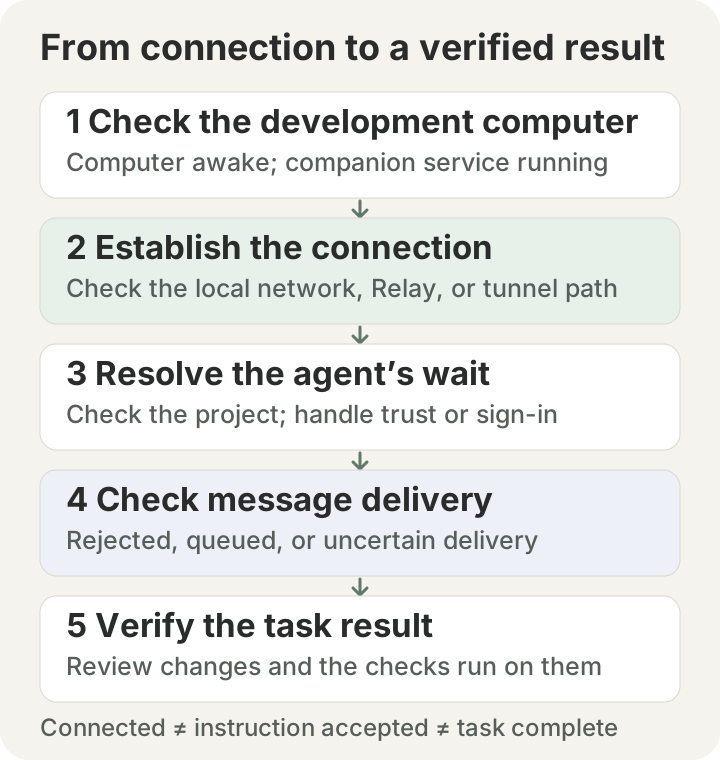
Each stage needs its own evidence. A connection to the computer does not mean the task has started.
Version 1.10 already introduced a project-based home screen, prompt drafts, and account connections. Version 1.11 builds on that workflow with explanations and recovery actions for failed connections, rejected input, and interrupted sign-in. Your existing project and original session remain the starting point for continuing the task.
If the computer is unreachable, check the connection you are using
If a connection works on your home Wi-Fi but fails after switching to cellular, first check whether the app is still using the computer’s local network address. A direct local connection depends on a reachable network path between the two devices. Tactic Relay requires the computer to be online, its companion service to be running, and the relevant account and host authorization to be in place.
The 1.11 home screen provides troubleshooting steps for each connection type. For a local connection, those steps focus on local network permission, the address, and the firewall. For Relay, they focus on the host’s availability, account verification, and the Relay status on the computer.
| What you see | What to check first | Evidence that access is restored |
|---|---|---|
| Works on home Wi-Fi but fails after leaving | Whether the app is still using a local address or a configured remote connection | You can enter the intended computer’s workspace on your current network |
| The computer appears under your account, but the connection fails | Whether it is awake and its companion service and Relay are running | You can open a project on that computer, rather than only see its name |
| A quick disconnect and reconnect times out | The versions on both devices and the current connection message | A new connection succeeds and fresh session output appears |
| Linking the computer fails some time after sign-in | Whether account verification needs to be completed again | Linking succeeds and you can select the correct computer to connect |
This release fixes connections that could time out after a quick reconnect, as well as computer linking that could fail some time after sign-in. A sleeping computer, network isolation, and a stopped service still need their own checks. For a detailed procedure, see the local network and Relay troubleshooting guide.
When the agent cannot accept input, keep the message with the reason
Return to the opening example. You have entered the original session, but the terminal is showing a project trust prompt. The agent’s process may be running; it simply cannot yet treat your text as a coding instruction.
With an updated companion on the computer, 1.11 explains why the send was rejected and keeps the message. Recognized waiting states direct you to Open Terminal to resolve the prompt, rather than restarting the agent just to send an instruction. When the agent is explicitly reported as not running, the app offers Start & Send.
Once a message is kept, you can choose Queue to place it in the pending queue, or Edit to return it to the composer. For example, you might change “Fix it and commit” to “First explain the proposed fix and the behavior we need to preserve.” If the input field already contains text, Edit is disabled to prevent it from being overwritten by the kept message. Check both the input field and the queue before choosing an action.
Three message states need different treatment:
| Message state | What you can conclude | What to do next |
|---|---|---|
| Explicitly rejected and kept | This instruction was not accepted | Resolve the blocker, then edit the message or choose how to continue sending |
| Added to the pending queue | The instruction is waiting for send conditions | Check the queue and any reason it is paused; avoid adding a second copy |
| Disconnected during sending, with a warning that it may have been sent | Delivery is uncertain | Check output in the original session before deciding whether to resend |
“Kept” means the text you wrote is still available for a recovery action. “Accepted” means the computer has accepted the request. “Complete” requires the actual changes and verification results. After Start & Send or resuming a queue, a message is sent only when send conditions are met. Its continued presence on screen is not enough to conclude that it has not run.
Replies should continue after trust, sign-in, or startup prompts
Version 1.11 also fixes a confusing issue: replies could stop appearing while the agent was waiting for trust confirmation, sign-in, or startup. After resolving one of these prompts, you need to see what happens next in the original session, rather than open a new one because the screen appears unchanged.
For a trust prompt, check the actual project directory. For provider sign-in, use that agent’s own account. During startup, check whether input is ready or a specific error has appeared. Signing in to Tactic does not sign you in to Claude Code, Codex, Amp, or Droid.
These prompts do not all call for the same “continue” response. Directory trust and tool permissions concern actual access and actions; respond to the options shown in the terminal. The agent waiting and message recovery guide walks through the choices.
Passkey sign-in is easier to find, and interruptions are clearer
Passkeys were already supported. In 1.11, their entry points are easier to find in onboarding, account settings, and the web sign-in page.
The sign-in page also scrolls correctly, and cancelling passkey verification produces a more accurate message. Cancelling one verification attempt is different from having no account or entering an incorrect password. Checking which step you completed can help you avoid repeatedly switching sign-in methods or linking the computer again.
This release also strengthens account verification and authorization checks, and improves recovery from cloud account-service interruptions. Your Tactic identity, authorization to access a host, and the agent’s provider account still serve different purposes. If the terminal says the provider is not signed in, resolve that agent’s sign-in instead of signing in to Tactic again.
Pro screens explain the feature, and offer codes can be redeemed in the app
When a feature opens the Pro upgrade screen, 1.11 explains the feature you tried to use. That gives you more context for deciding whether to upgrade for the task at hand. The app also adds an entry point for redeeming App Store offer codes.
Offer eligibility depends on the promotion and the account. After redemption, check the purchase status shown by the App Store and the app. An offer-code entry point does not mean every account qualifies for every promotion.
Update both devices, then verify a handoff in the original session
The explanation needed for message recovery comes from the computer’s response, so update both the mobile app and the companion you actually use on the host. The Mac app, Mac/Linux CLI, and Windows Preview have their own installation and release paths. If you use the Mac app, update the app itself; updating a separate CLI does not replace the service bundled inside the Mac app. If you use the standalone CLI, update that package. Windows Preview follows its own release versions.
Use this sequence to update and check the connection:
- While the task is idle, record the computer, project directory, original session, and versions on both devices. If work is still running, save its current progress before arranging the host update.
- Check the official download page for the version actually available on your platform, then update the mobile app and the corresponding companion.
- Start the companion again and use your previous connection method to enter the original project and session.
- Read the latest terminal output, resolve any trust or sign-in prompt, then check kept messages and the pending queue.
- Send a small request whose result you can verify before continuing implementation.
For example:
Give me a read-only summary of this project’s working directory, Git branch, existing changes, and unresolved issues. Do not edit files, install dependencies, or publish anything. First explain which checks you recommend next.
The reply should match the original project and its current changes. Once you have confirmed that, send the specific implementation request. A restored connection means you can access the computer again; completing the task still requires the actual result and the relevant checks. The 1.11 changelog lists the improvements and fixes.
Try Tactic Remote
Control your coding Agents from your phone
Connect to Claude Code, Codex, and other Agents on your Mac, Windows, or Linux computer. Check progress and send the next instruction from iPhone or iPad.