Blog
Troubleshooting iPhone connections: local networks and Tactic Relay
What does the same Wi-Fi name, a listed computer, or a reachable port actually prove? Find the last working stage, preserve the original session, and verify recovery with a small request.

You can connect to your Mac at home, but not from a café. The computer appears under your account, yet opening a project keeps timing out. Or the terminal is visible, but no new reply arrives. These can all look like connection failures, although the next thing to check is different in each case.
Start with the last stage you know was working. If the computer is not running, restore the host first. If the local connection fails but an already configured Relay connection works, investigate the local network. If the original session has live terminal output, move on to the agent’s state. Each step then gives you something concrete to assess while preserving the task already in progress.
Record the current state before changing connection settings
Note the computer name, project and session, connection type, error text, and approximate time. Check whether anything changed recently: the network, computer sleep, a host update, or a cancelled sign-in.
Avoid starting by unlinking the computer, deleting the session, or clearing all connection settings. Those actions change authorization or working state without fixing a sleeping computer or guest-network isolation. Change one relevant condition at a time and compare the result.
The steps below are for diagnosing an existing connection. For first-time setup, follow the iPhone getting-started guide to install the companion and complete pairing.
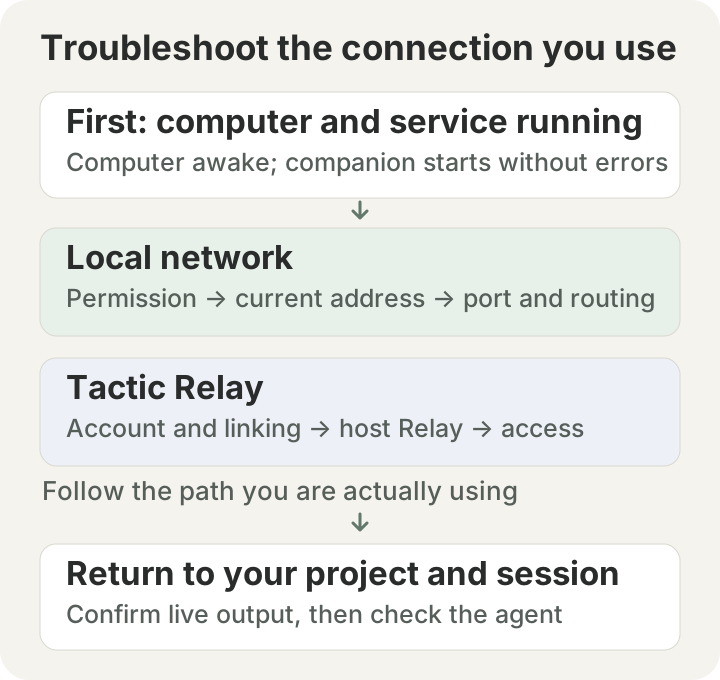
Both connections use the same development computer, but their network and authorization steps differ. Check the path you are actually using.
Step 1: check that the computer and companion service are running
The computer needs to be available for work, and its companion app or CLI service needs to be running. A screen that is off is different from a computer that is asleep. A computer’s presence in your account list is also not a substitute for checking the current connection. Look for service status, startup errors, and confirmation that this is the computer you intended to use.
On a Mac, this read-only command checks the default port:
The default port is 8765. If you changed it, use the configured port instead. The COMMAND, PID, and listening address help identify which process is providing the service.
| Result | What it tells you | Next step |
|---|---|---|
| No output | This check found no listening process on that port | Check whether the service started, whether it reported an error, and whether the configured port matches |
| A listening process | A local service is listening on the port | Confirm the process against the companion’s status, then check the path from the phone to the computer |
| Only a loopback listening address | That listening address is accessible only from the computer itself | Review the service’s local network configuration; keep authentication enabled |
| An unexpected process or a port conflict | You may be reaching a different service | Identify the process before considering whether to stop it |
This check does not verify a Tactic identity or prove the iPhone can connect. The Mac app and a separate CLI may both use the same default port, so establish which one you started. If you cannot inspect the computer directly, record its status as unconfirmed and continue with the errors visible on the phone.
Step 2: for a local connection, check permission and reachability
Two devices showing the same Wi-Fi name are not necessarily able to reach one another. Guest networks, enterprise network isolation, and VPN routes can affect the connection. On the iPhone, check Tactic Remote under Settings → Privacy & Security → Local Network. Apple’s local network permission guide explains this setting.
Next, compare the computer’s current address with the address saved in the app. A different router, a switch from Wi-Fi to Ethernet, or a new DHCP address may leave the saved address pointing somewhere else. Use the address currently shown by the host companion; do not assume every Mac uses en0 for Wi-Fi.
If another Mac is available on the same trusted network, you can check a TCP connection to the development computer:
This command only attempts a TCP connection. It does not send Tactic credentials or a coding instruction. The -G 3 option is the connection timeout argument for macOS nc; options may differ on other systems.
| Result | How to interpret it |
|---|---|
| Connection succeeds | This test device can reach the target port; Tactic authentication and the iPhone’s network path still need separate checks |
| Connection refused | The connection was actively refused. Check the port, service, listening configuration, and filtering rules. This does not verify Tactic authentication or establish which device returned the refusal. |
| Timeout | No connection response has arrived; check the address, device isolation, routing, firewall, and host state |
Testing 127.0.0.1 on the development computer checks that computer itself. In an iPhone browser, 127.0.0.1 points to the phone, not the Mac. A failed ping is also insufficient on its own to conclude the service is offline, because the network may restrict ICMP.
If you need to adjust the firewall, allow the required access for the companion that is actually running and retain authentication. If a VPN is in use, compare routing changes only within your organization’s network rules. Disabling the entire firewall, disabling authentication, or opening router ports should not be routine recovery steps. See the local network setup guide for the basic configuration.
Step 3: for Relay, check the account and host status
Once you leave home, the phone cannot continue relying on the home computer’s local network address. For Tactic Relay, confirm that both devices use the intended Tactic account, that the computer is linked, and that the host companion’s Relay connection is active.
Check in this order:
- The computer is awake, the companion is running, and its internet connection is available.
- The phone and computer are signed in to the intended account, and you have selected the correct computer.
- The computer reports a working Relay connection, rather than reconnecting or showing a specific error.
- Any requested account verification, renewed sign-in, or browser-to-app return has been completed.
- After resolving those prompts, connect to the computer and open a project.
Tactic sign-in handles host linking and access authorization. Coding agents such as Claude Code use their own provider accounts on the development computer. Seeing a computer in the account, connecting to its workspace, and having a signed-in agent are separate states.
Version 1.11 fixes computer linking that could fail some time after sign-in. If verification is requested, complete it before trying to link again. Repeatedly unlinking and relinking introduces more changes to track; it should not be the first response to every timeout.
If both connection types are already configured correctly, they can help you compare paths. A failed local connection with a working Relay connection points you toward local network checks. A working local connection with a failed Relay connection points you toward account verification, the host’s Relay status, and internet access. The comparison narrows the investigation; it does not prove that any single component is fault-free.
If you use Cloudflare Tunnel, check its current address separately
For Cloudflare Tunnel, check the tunnel process, its current address, and the service it actually maps to. Restarting a temporary tunnel can change its address, so a saved URL may no longer point to the current computer.
Opening an HTTP page in a browser does not by itself verify the app’s WebSocket connection or authentication. Keep the full error, confirm the current address, and follow the Cloudflare Tunnel setup guide. Keep those checks focused on the tunnel configuration, rather than changing Tactic Relay linking at the same time.
Step 4: return to the original session and verify fresh output
Once connected, select the computer, project, and session you were using before the failure. Being able to list projects shows that workspace access is restored. Live changes in the original terminal show that session output can reach the phone. Old history only shows that a record exists; it does not verify the current connection.
If the terminal is waiting for project trust, provider sign-in, or startup, use the agent waiting guide. Changing Wi-Fi settings or linking the account again will generally not answer that terminal prompt.
If you disconnected while sending, look for fresh output corresponding to that request. It may already have reached the computer. After reconnecting, check before sending the full task again. Once you have confirmed the session is idle, you can send a small status request:
Give me a read-only summary of the current project, work already completed, and anything waiting for a decision. Do not run the previous task again or edit files.
Check that the directory and results match the original task before deciding what to do next. If a new session is needed, record the old session’s actual state first. A new session does not automatically inherit the full context.
If it still fails, give support the checks and their results
Copy this template and fill in the facts you know. Use “unconfirmed” for anything you have not checked.
Before sharing, remove credentials, pairing QR codes, sign-in links, and private terminal content. Redact accounts, paths, and network addresses as needed. A specific report to support—such as “The local port is reachable, the app reports a verification failure, and the host version is…”—is far more helpful than simply reporting that it will not connect.
Once access is restored, check both versions against the download page so an unresolved mismatch does not cause surprises later. For the other changes in 1.11 and guidance on updating the mobile app and host companion, see the Tactic Remote 1.11 overview.
Try Tactic Remote
Control your coding Agents from your phone
Connect to Claude Code, Codex, and other Agents on your Mac, Windows, or Linux computer. Check progress and send the next instruction from iPhone or iPad.