Blog
How to use Claude Code from your iPhone: Mac, Windows, and Linux setup
Connect an iPhone to Claude Code on your development computer with Tactic Remote. Follow the correct host setup, choose your repository, and send the first request.
Follow product and engineering updates from this channel.
Browse category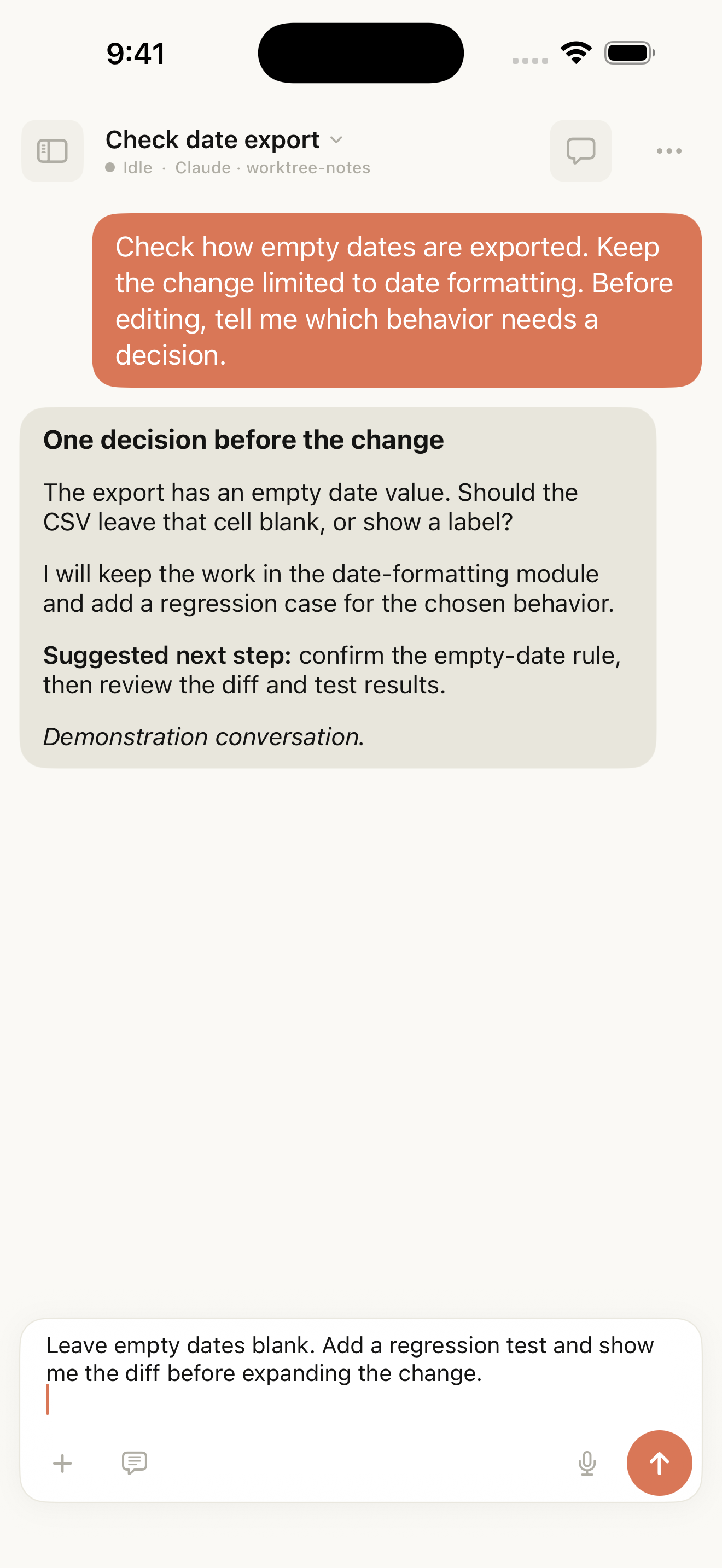
Read the question from Claude and prepare a follow-up on your phone. Native simulator example; the conversation is labelled as a demonstration and the draft has not been sent.
You have Claude Code installed and signed in on your development computer. Now you want to ask it a question, read its progress, or answer a decision from your iPhone. With Tactic Remote, the computer runs Claude Code and keeps the project files; the phone connects to that host and provides the conversation interface.
This guide covers creating a Claude Code conversation through Tactic Remote 1.10. It does not assume that a conversation from another client will be imported automatically. If your goal is to continue an existing Claude Code session through Anthropic's own app, also consider official Remote Control.
Confirm the project works on the computer
Open the target project in your computer's terminal and start Claude Code as you normally would. Ask it to explain the project without changing files. Resolve any login or startup problem here before connecting your phone.
Keep the roles separate: Claude Code uses its own authentication and usage allowance. Signing in to Tactic Remote authorizes Tactic's account features; it does not sign you in to Claude Code.
Get the iPhone app and the appropriate host software from the download page. Use the requirements listed for the available versions. Then follow the section for the computer that will run your task.
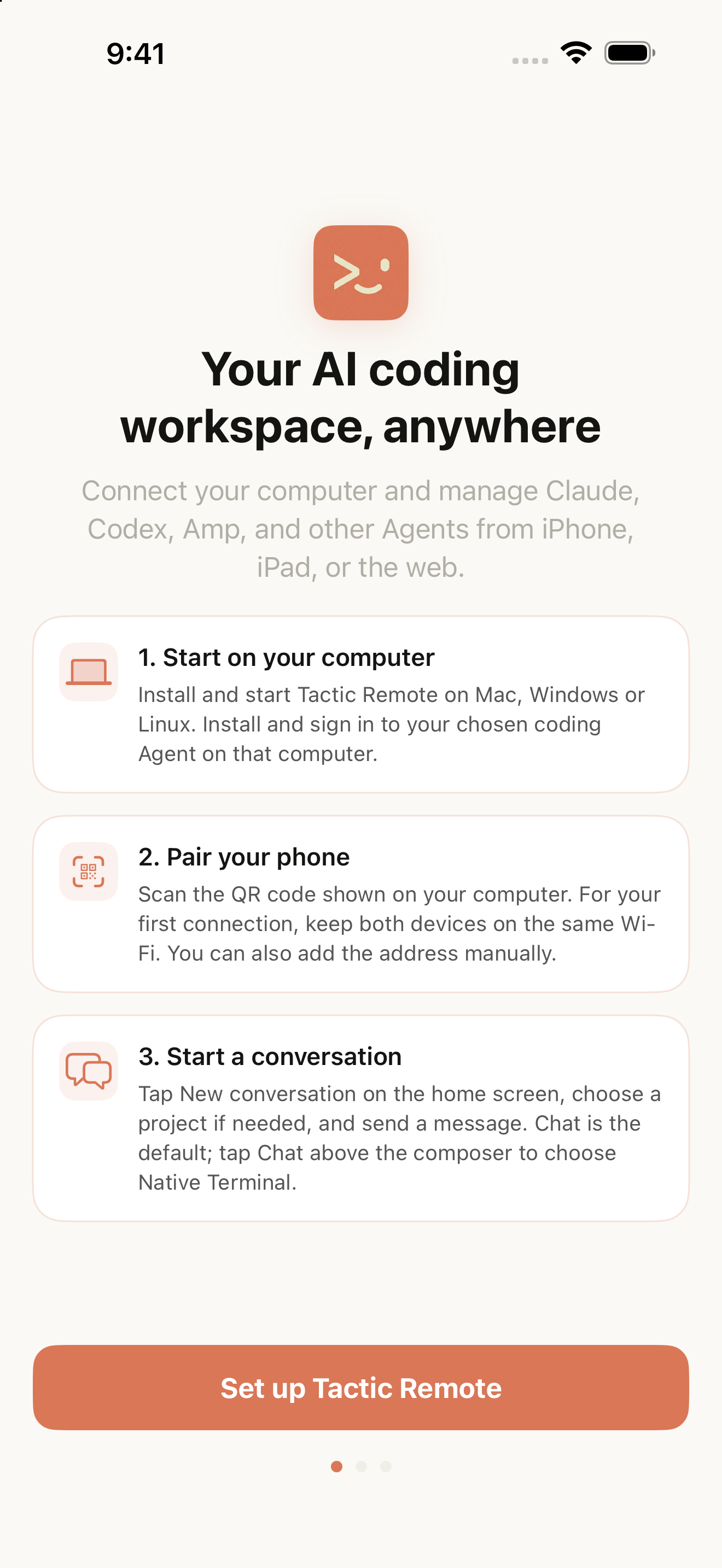
English simulator screenshot of the setup overview. The host-specific instructions below explain which connection route to use.
Mac: pair with the companion app on local Wi-Fi
Install and launch the Mac companion app. It includes the local server and its Node.js runtime, so you do not need to install Node separately for this app route. Follow any dependency checks shown by the companion and confirm its server is running.
For the first connection, put the Mac and iPhone on the same Wi-Fi. In the iPhone app's setup screen, tap Scan QR Code and scan the connection code shown by the Mac companion. After connecting, check the host name.
If pairing fails, check that the phone can reach the Mac. Guest networks can isolate devices even when both show the same Wi-Fi name. The local-network guide covers address and connection checks. Being paired locally does not yet establish access from cellular data.
Windows: bind the PC and connect through your account
Use the Windows companion and mobile versions required by the Windows account and Relay guide. This route requires compatible 1.10 versions; do not expect the same controls in an older build.
Open Account in the Windows companion, complete Tactic sign-in in the browser, and return to the app. Choose Bind this PC if needed. Enable Tactic Relay and wait for it to show a connected state.
On the iPhone, sign in to the same Tactic account, open Your Computers, and select this PC. Keep the companion running. Choose a project directory on the Windows host, such as your own repository under C:\Projects; a shared folder exposed by a virtual machine does not change which operating system runs the Agent.
Linux: run the documented CLI server
On Linux, use the terminal-based server route in Getting Started. The documented setup uses Node/npm, tmux, and a working Agent CLI. Start the server as the user whose Claude Code login and project access you intend to use:
Use its connection QR code or address in the iPhone app. For an initial local connection, the phone must be able to reach the Linux host. A cloud VM's private address will not become reachable simply by scanning its QR code; configure a reachable remote route when the host is on another network. Keep the server process running while using the phone.
Choose the repository and Claude Code
After connecting to the correct host, tap New Conversation at the bottom right of the project home.
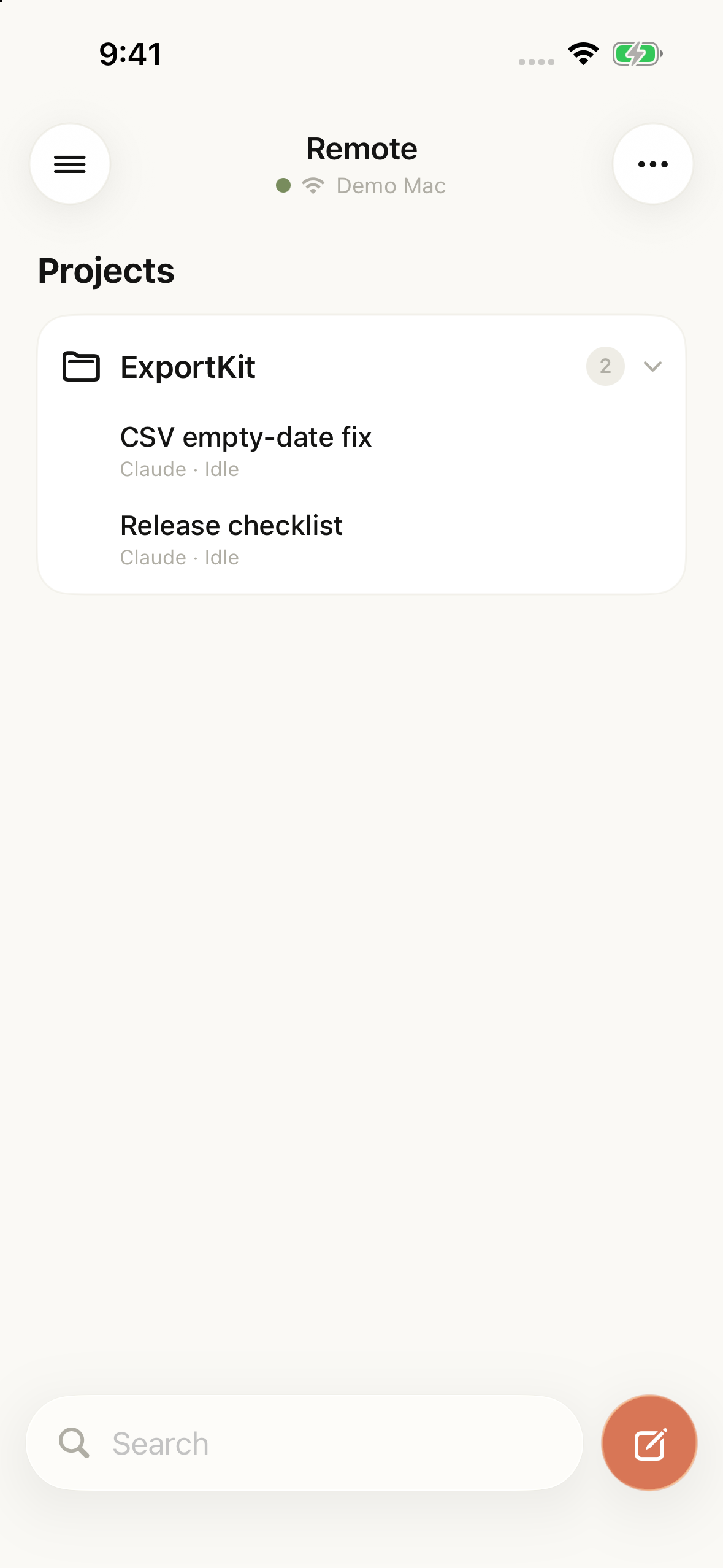
The project home shows the connected host and groups its conversations. Tap the compose button in the bottom right to start a new one. Demo Mac and project names are sample data.
Below the input, tap the project or Independent Workspace button. Select the actual repository directory; use Choose another folder if it is absent from the list. Independent Workspace creates a separate directory, so mentioning a project in your message does not select its existing repository.
Next, tap the Agent button below the input and choose Claude. Keep the interaction menu above the input on Chat for the first request. Native terminal mode is another option when direct command-line interaction is needed.
The creation screen prepares the choices. Sending the first message starts the Agent.

Select Chat for the conversation interface. This native example also shows Claude below the input; its Independent workspace and lock icon indicate that it is not a completed connection or task.
Make the first request easy to verify
Send:
Inspect this project without modifying files. Report the working directory and Git branch. Explain how the app starts and identify its test command. Do not run tests or install dependencies yet.
Check the response against the project you opened on the computer. The first useful milestone is seeing output from the correct directory and branch. If Claude is waiting at a login, startup, or permission prompt, resolve that specific prompt instead of assuming the phone connection failed.
Then choose one concrete follow-up. For example:
Read the function that handles empty search input. Explain what happens for an empty string and a string containing only spaces. Cite the file and function. Do not change it yet.
Replace this with a behavior from your own project that you need to understand.
After confirming the directory and branch, follow the phone bug-fix case to see how to scope a change and check its result.
Try another network before leaving
For Mac or Linux, configure a remote route such as the Cloudflare Tunnel setup before relying on access away from local Wi-Fi. Use the tunnel's current address and required authentication; a temporary tunnel address can change after restart. On Windows, check the Relay connection configured above.
Switch the iPhone to cellular data and reconnect while you can still inspect the host. The host must remain awake with its server running. Closing the phone app does not tell you whether the Agent completed its work; reopen the same host and conversation and inspect the latest state.
| What you see | What to check |
|---|---|
| Host offline or unreachable | Host power and sleep, server status, and network route |
| Connected, but no Agent reply | Check the Agent, queue, and delivery state |
| Unsure whether your previous request arrived | The latest conversation record before sending it again |
Start with that one read-only question. Download Tactic Remote, follow your host's connection route, and verify the project before asking Claude Code to make a change.
A REAL WORKFLOW. YOUR HONEST FEEDBACK.
Does this work for the way you work?
Using another tool, or tried Tactic Remote and moved on? Try one month of Pro and tell us what happened. Get three more months after a survey or interview.