Blog
When your agent is waiting for trust or sign-in: recover the message and resume the session
The computer is connected, but your next instruction cannot be accepted. Read the terminal prompt, choose Open Terminal, Start & Send, Queue, or Edit as appropriate, then verify the actual result in the original project.

You open a project from your computer on your iPhone and write: “Fix the sign-in page so it scrolls, while preserving the existing sign-in methods.” After you tap Send, the app says the agent cannot accept the message yet. The terminal still shows an interface, and nothing says the process has exited.
Two questions matter here: what is the agent waiting for, and what happened to the instruction? Resolving only one is not enough. After completing sign-in, you may still have a kept message that needs a decision. After restoring the network, the request you just sent may already be running.
With an updated host companion, Tactic Remote 1.11 explains recognized input blockers and keeps rejected messages. The three examples below show how to continue. They illustrate recovery steps, rather than report actual user incidents or describe every agent interface in the same way.
Separate a running process, input readiness, and task completion
A terminal process that is still running may not be ready for a coding instruction. It might be asking you to confirm the project, waiting for provider sign-in, or preparing its input interface. An idle interface does not prove the code is fixed either; it may simply mean no task is currently running.
| Current state | What you can establish | Next step |
|---|---|---|
| Waiting for project trust | You need to decide whether to use this directory | Check the directory and its origin, then respond to the actual prompt |
| Waiting for provider sign-in | The agent needs its own account credentials | Complete that agent’s sign-in and return to the original session |
| Starting or input not ready | A usable input state has not been reached | Read startup output and any specific error |
| Explicitly not running | The current session has no available agent process | Check the selected agent and directory before starting it |
| State not recognized | There is not enough information for a reliable conclusion | Open the terminal and inspect it before restarting |
| Asking for tool permission | An action is waiting for your decision | Review the action, paths, and scope of its effects |
Tool permissions govern actions during a task; a permission prompt does not necessarily mean a send was rejected. Agents, modes, and versions can present different prompts. Use the actual terminal output and the app’s explanation.
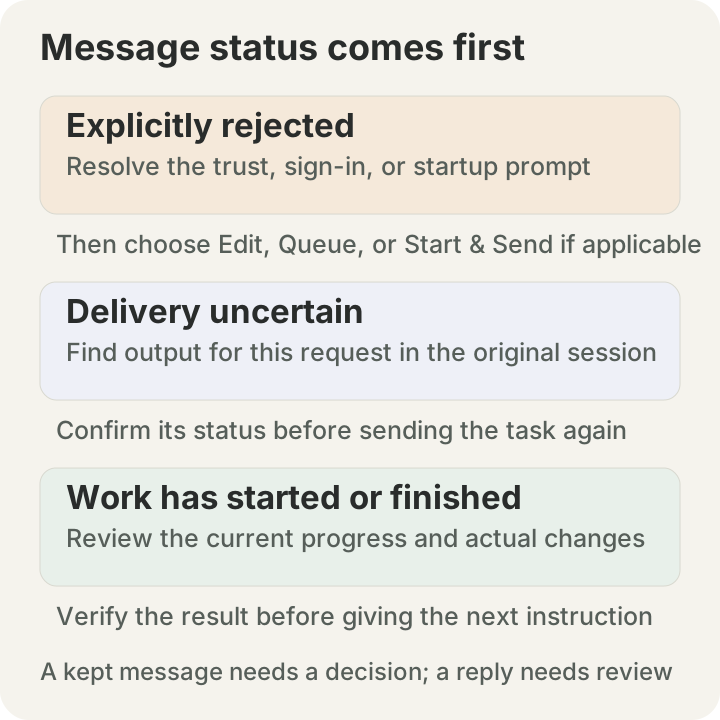
Whether to resend depends on the message’s status. A restored network, a ready agent, and a completed task each need their own evidence.
Example 1: a new project is waiting for directory trust
You switch to a new repository, and the terminal asks whether you trust the directory. In an interactive session, Claude Code shows a workspace trust dialog for a directory you have not trusted. Its official security documentation describes this behavior.
First check the full path in the terminal. Is it the repository you intended to open? Is it your own code, a colleague’s project, or unfamiliar content you just downloaded? Directories with the same name can belong to different branches, copies, or separate workspaces. The session title alone is not enough.
When 1.11 recognizes this waiting state, the recovery action directs you to the terminal. Respond to the options shown, then check that the agent has reached its input interface. Restarting a process that is still waiting will often bring you back to the same decision.
Next, review the kept instruction. If it asks for edits or a commit, you can return it to the input field and narrow the request first:
Perform a read-only review of how this repository starts, the relevant sign-in pages, and the existing tests. List the files that may need changes and the behavior to preserve. Propose an approach. Do not edit files, install dependencies, or commit anything.
Check that the paths in the response match the current repository before proceeding with implementation. Later tool permission requests still need to be considered on their own terms. Trusting a directory does not approve every subsequent action. The permissions documentation explains how action authorization works.
Example 2: the computer is connected, but the agent still needs sign-in
Your Tactic account handles linking and access to the development computer. Claude Code, Codex, Amp, and Droid use their own provider accounts on that computer. Opening a project from the phone does not mean all those provider identities are ready.
First identify which program is asking you to sign in. If it is the agent’s terminal prompt, follow that agent’s verification flow. If the flow requires the computer’s browser, complete it there and return to the same session. Keep sign-in URLs, one-time authorization codes, and account credentials out of ordinary chat messages.
After signing in, confirm that the terminal has left the sign-in screen and can handle input. If the actual error concerns account access, subscription eligibility, connectivity, or configuration, follow that error. Repeatedly signing in to Tactic or relinking the computer cannot complete provider verification.
Then check the kept message, input field, and pending queue. If the instruction has not been sent, confirm which copy to continue with. If new output already corresponds to the instruction, inspect the current result. A quiet screen immediately after sign-in is not a reason to paste the whole task again.
Choose a recovery action by what it does to this message
Version 1.11 offers actions according to the recognized state. When the agent is explicitly not running, you can choose Start & Send. For recognized trust, sign-in, or startup waits, Open Terminal takes you to the current prompt.
You can also choose Queue or Edit for the same kept message. They serve different purposes:
| Action | What happens | What to confirm first |
|---|---|---|
| Open Terminal | Inspect and resolve the blocker without restarting a process recognized as waiting | The current project and the specific prompt |
| Start & Send | Queues the kept message and starts the agent; the message is sent only when the send conditions are met | A start is needed, the agent and directory are correct, and the instruction still applies |
| Queue | Adds the kept message to the pending queue to continue in order when send conditions are met | Queue contents, order, connection state, and whether the queue is paused |
| Edit | Returns the message to the input field to revise or discard; disabled if text is already typed | Whether the input field already contains another draft |
If the input field already contains text, Edit is disabled to prevent it from being overwritten by the kept message. If the queue is paused, an approval is pending, or the task’s status is uncertain, reconnecting alone does not tell you that the queued instruction has been sent.
An older host companion may not provide full waiting-state classification, so the app may display a generic Start & Send button. This button is not proof that the process has stopped. Check the actual state in the terminal before deciding to start, and update the companion you actually use on the computer.
Example 3: the connection drops after Send—check delivery first
When the app receives an explicit rejection from the computer, the message can be recovered as a request that was not accepted. A timeout or disconnect during sending is different. The request may have reached the computer even though the phone did not receive its result.
Return to the same computer, project, and session. Look for the latest output corresponding to that request. If the agent is editing the sign-in page, let it continue. If it has produced a result, review it first. In chat mode, the absence of a new message bubble or the presence of older history alone is not enough to prove the request did not run; the host may already have received the request.
For example, if the request was “Fix it, then commit,” sending it again could cause additional edits, a second commit, or another run of an expensive command. Until the state is clear, “try again” should not be the default recovery action.
Once you have confirmed the session is idle, you can ask for its current progress:
Tell me whether the previous task has started, which files have changed, which checks actually ran, and whether a commit was created. Do not run the previous task again, make further changes, or publish anything.
This is a status request. If the terminal is still waiting for a trust, sign-in, or permission choice, resolve that prompt first; the query itself may otherwise be rejected. If you cannot read the original session, inspect the project and process on the computer before deciding how to recover.
After recovery, verify the work as well as the response
First use a small request to check that the original session responds normally, then ask for implementation. For the scrolling issue in the opening example, state both the goal and the behavior to preserve:
Fix the sign-in page so it scrolls on a small screen. Preserve the existing sign-in methods, the return from sign-in, and the message shown when verification is cancelled. First explain the smallest change needed. When finished, report the actual edits, checks run, failures, and interactions that still need manual verification. Do not publish yet.
When reviewing the result, confirm at least that the edits are in the intended repository, the page actually scrolls, and the existing sign-in and cancellation flows meet the requirements. Test results should apply to the current changes. If relevant code changes after a check, verify the affected behavior again. Receiving a reply confirms that responses have resumed; it does not replace these checks.
Create a new session only after establishing that the original no longer exists or cannot continue. Save a task summary, changed files, completed checks, and unresolved questions first. A new session in the same directory, or a different agent, does not automatically inherit the full task context.
If the computer becomes unreachable again, return to the connection troubleshooting guide. If the connection works but useful replies still do not arrive, record the agent name, versions on both devices, the exact waiting prompt, and the last message’s status before contacting support. See the 1.11 overview for update requirements and the other changes in this release.
Try Tactic Remote
Control your coding Agents from your phone
Connect to Claude Code, Codex, and other Agents on your Mac, Windows, or Linux computer. Check progress and send the next instruction from iPhone or iPad.