Blog
Claude Code on iPad: connect your computer, review a task, and choose an Agent
Use an iPad to work with Claude Code, Codex, or Amp on your development computer. Choose a connection, start in the correct project, and review a small task.
Follow product and engineering updates from this channel.
Browse categoryIf Claude Code already works in a project on your computer, an iPad can give you another place to read its output and decide what happens next. The computer still runs the Agent and holds the project files. The iPad connects to it, displays the conversation, and sends your requests.
This guide uses Tactic Remote 1.10 to create a conversation on that computer. It also explains when another approach fits better. You do not need to move your repository onto the iPad or install a development toolchain there.
Choose the connection that fits your work
Start with the session you want to reach. Already having a Claude Code conversation is different from wanting a new conversation with a choice of Agents.
| Your starting point | An approach to consider |
|---|---|
| You already use Claude Code and want to continue its local session in Claude's app or a browser | Anthropic's official Remote Control |
| You want to create conversations with Claude Code, Codex, or Amp installed on your computer, using Tactic's project and conversation interface | Tactic Remote |
| You primarily need a general shell on another computer and are comfortable managing terminal sessions | An SSH client |
Anthropic's Remote Control documentation describes mobile access, permission prompts, and mobile push notifications. Those features should not be treated as exclusive to Tactic. Check the official requirements if you choose that route.
The steps below cover conversations created through Tactic Remote. They do not establish that an existing conversation in another app, or a cloud task, will appear automatically.
Connect the iPad to the development computer
First, open your intended project on the computer and confirm that your chosen Agent can answer a request there. Complete its login on that computer. A Tactic account connects devices; it does not sign you in to Claude Code, Codex, or Amp.
On a Mac, get the companion app from the download page, launch it, and keep its server running. With the Mac and iPad on the same Wi-Fi, open Tactic on the iPad, choose Scan QR Code, and scan the companion's connection code. Check the host name after connecting. The local-network guide covers connection troubleshooting.
Windows uses a separate account and Tactic Relay setup: sign in on the companion, bind the PC, enable Relay, then select that computer from Your Computers on the iPad. For Linux, follow the CLI route in Getting Started; there is no Mac menu-bar app to launch there.
Select the project before writing the task
From the project home, tap New Conversation in the bottom right. In the creation screen:
- Tap the project or Independent Workspace button below the input. Select the actual repository directory, using Choose another folder if necessary.
- Tap the Agent button below the input and choose an Agent installed and signed in on this host.
- Start with Chat, using the menu above the input. Native terminal mode is available when you need to interact with the command line directly.
Independent Workspace creates a separate working directory. Naming an existing project in the prompt does not select that project's folder. For a review of existing code, choose the repository explicitly.
Opening this screen does not start the Agent. Sending the first request starts the conversation. Begin with:
Inspect this project without changing files. Report the working directory and Git branch, explain how the app starts, and identify the command used for its tests. Do not run the tests yet.
Read the returned path and branch. If they are wrong, correct the project selection before requesting changes. A reply alone does not tell you that the intended repository was selected.
Use the larger screen for a bounded review
The useful difference between an iPad and a phone is room to read. Longer output and project context are easier to inspect on a larger display, and an external keyboard can make a detailed follow-up more comfortable. You do not need simultaneous Agent windows to benefit.
Choose a question small enough to check. For example, replace the file names below with two files from your project:
Review the export operation in
ImageExporter.swiftandExportService.swiftwithout changing files. Trace where the output size is chosen, where the file is written, and how a write failure reaches the caller. Cite file locations. Separate what the code demonstrates from what would require a runtime test.
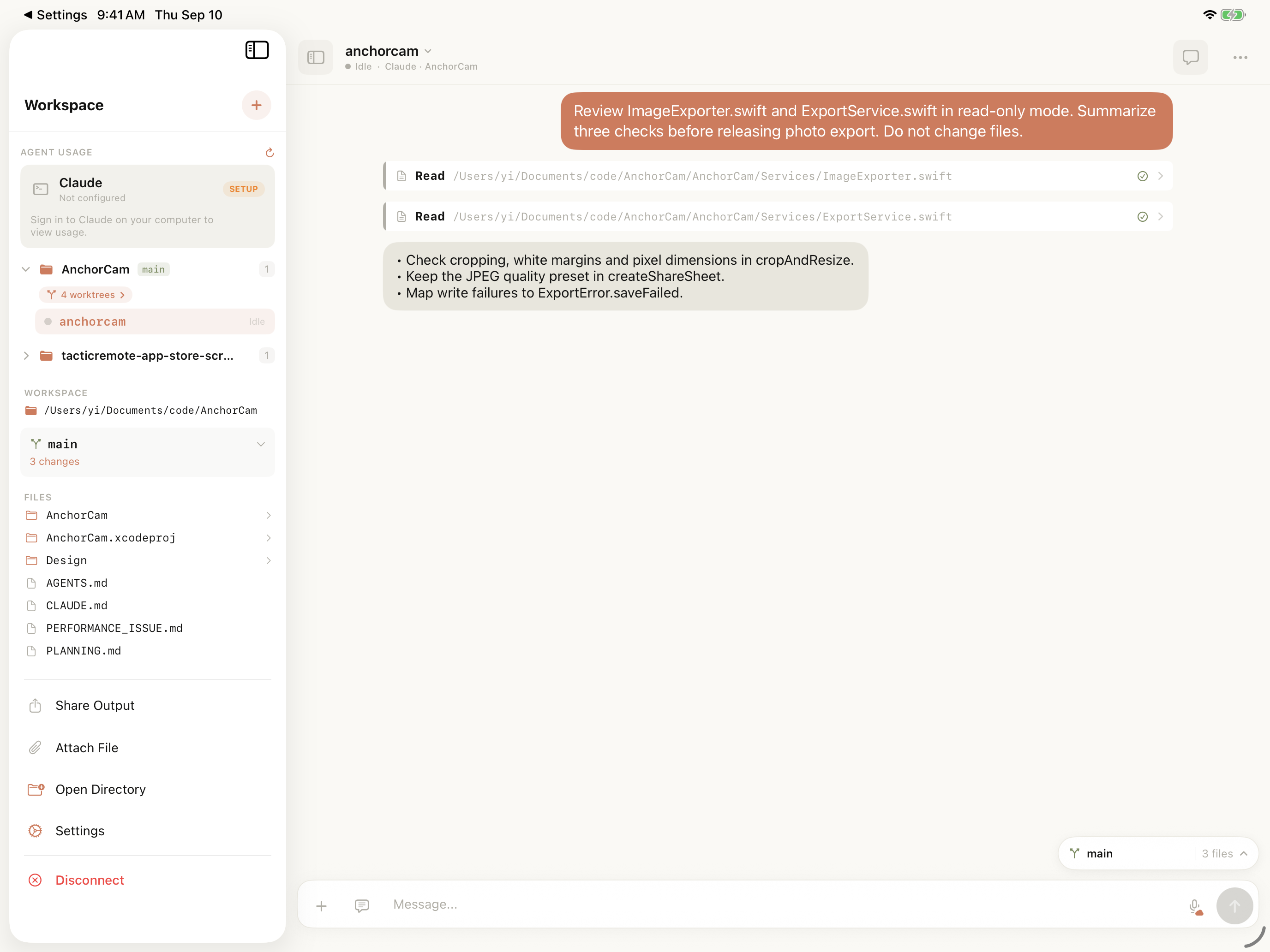
Existing QA screenshot used as a layout example. It shows a two-file review and suggestions; it is not evidence that the proposed checks passed.
Follow the explanation back to the relevant code. If the Agent proposes three checks, treat them as a plan until it reports what actually ran. Ask for the command, observed result, and anything still unverified. This keeps a short review useful even when you leave a full desktop review for later.
Give another Agent a deliberate handoff
You can choose Claude Code, Codex, or Amp for separate conversations when each is available on the host. A different Agent starts with its own conversation context. Merely choosing the same folder does not transfer the previous discussion.
Before asking another Agent to review work, prepare a short handoff: the goal, directory and branch, relevant files, changes made, checks actually run, and unresolved questions. Specify whether the second task is a review or an implementation.
If the first Agent is still modifying those files, pause that work or wait for a clear stopping point before starting another editing task. A useful second opinion needs a clear version of the work to inspect.
Check remote access before leaving
A successful local Wi-Fi connection proves local access. To connect from another network, configure a supported remote route, such as the Cloudflare Tunnel setup or Windows Tactic Relay. A temporary Cloudflare URL can change when its tunnel restarts; use the current address and configured authentication.
Try the connection from another network while you can still check the host. Keep the computer awake, its server running, and the Agent's own network access available.
When you return to the iPad, reopen the original conversation on the same host and read the latest output before resending anything. If a result is missing, distinguish an unreachable computer from an Agent waiting for login, input, or a decision.
If the host connects but the Agent does not answer, use the queue and delivery troubleshooting guide before resending the request.
Start with one repository and one review. Download Tactic Remote, connect your computer, and confirm the directory with the first request above. Once that works, use the iPad for the decisions that benefit from more reading space.
Try Tactic Remote
Control your coding Agents from your phone
Connect to Claude Code, Codex, and other Agents on your Mac, Windows, or Linux computer. Check progress and send the next instruction from iPhone or iPad.