Blog
Preview localhost on your iPhone with Tactic Portal
Start a local website, connect your iPhone or iPad, choose the right port, open a private Portal preview, and troubleshoot discovery, sharing and connection failures.
Follow product and engineering updates from this channel.
Browse categoryYour development server stays on your computer. This guide walks through bringing a harmless test page from your computer into Tactic Remote on an iPhone or iPad, followed by optional external sharing and how to revoke access when finished.
Candidate guide and evidence scope: screenshots below are unaltered English-language iPhone 15 captures from October 29, 2026, using 1.13 Build 45 and a Linux 1.13 test host. They are real device interactions, not generated UI. They do not re-test the final Mac or Windows binaries. An earlier recorded local check verified local HTTP discovery, without creating a new external share. Final-package device and reconnection acceptance remains pending.
Before you start
Use Tactic Remote 1.13 on iPhone or iPad with the Mac 1.13 app, Windows 1.13 Preview, or npm CLI 1.13.0 on macOS/Linux (npx tacticremote@1.13.0). The Homebrew formula also provides 1.13.0. Download the appropriate app, keep your computer awake, and pair it in Tactic Remote following the connection guide.
Pick a test project that contains no credentials, customer records, or administrative dashboards. You do not need an AI agent to generate a site or make a paid model request to complete this walkthrough.
1. Start a website on the computer
Run your project's standard development command and note the actual listening port (frameworks often pick a fallback port if the default is busy). First, confirm the page loads in your computer's local browser—opening Portal will not start the development server for you.
For a quick standalone test on a machine with Python 3 installed, create an empty test directory, save a harmless index.html file inside it, and run this command from that directory:
Open http://localhost:5173 on the computer. This command serves files in the current folder, so do not run it from a home directory or private repository. Python is only for this example; Node-based projects can use their existing server. The historical screenshots use port 3000, not this example's 5173.
2. Connect and choose the project
In the mobile app, select the intended computer and confirm it is connected. Open the conversation for the project that owns the website. Open the conversation menu and choose Portal preview. Pairing the computer and finding its website are separate steps; a disconnected host cannot serve the preview.
3. Confirm the port
Refresh the running-websites list. Prefer an entry marked for this project. If it says Project not verified, compare the port with your development server before selecting it. You can also choose Enter a port manually. Use HTTP for an HTTP server and HTTPS for an HTTPS server.
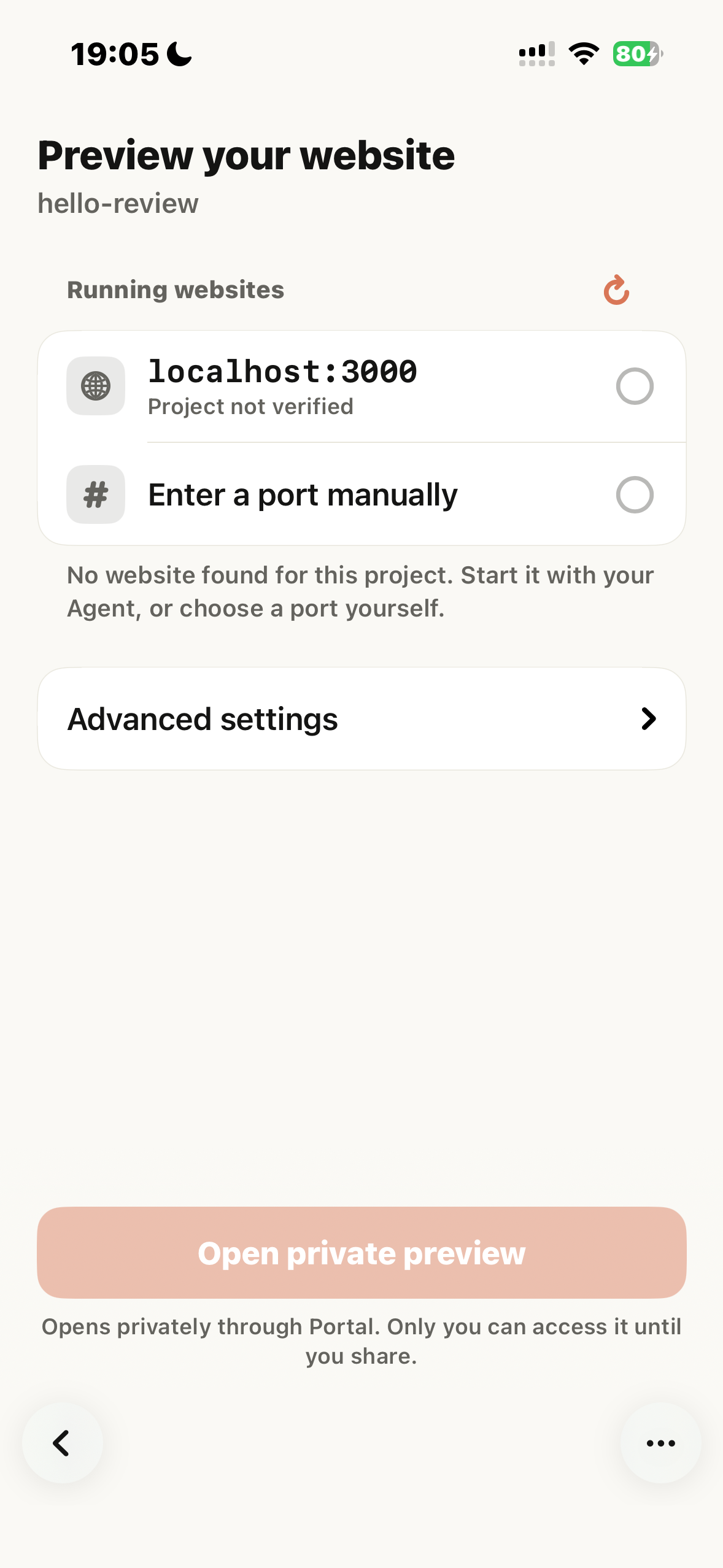
October 29 device test, English UI. Port 3000 was visible but its project association was not verified; this is not an automatic recommendation.
4. Open and check the private preview
Select the confirmed target, then Open private preview. Check the expected page rather than assuming that any successful connection is the right application. You can change preview width to inspect a mobile or desktop layout. Keep the computer and its server running.
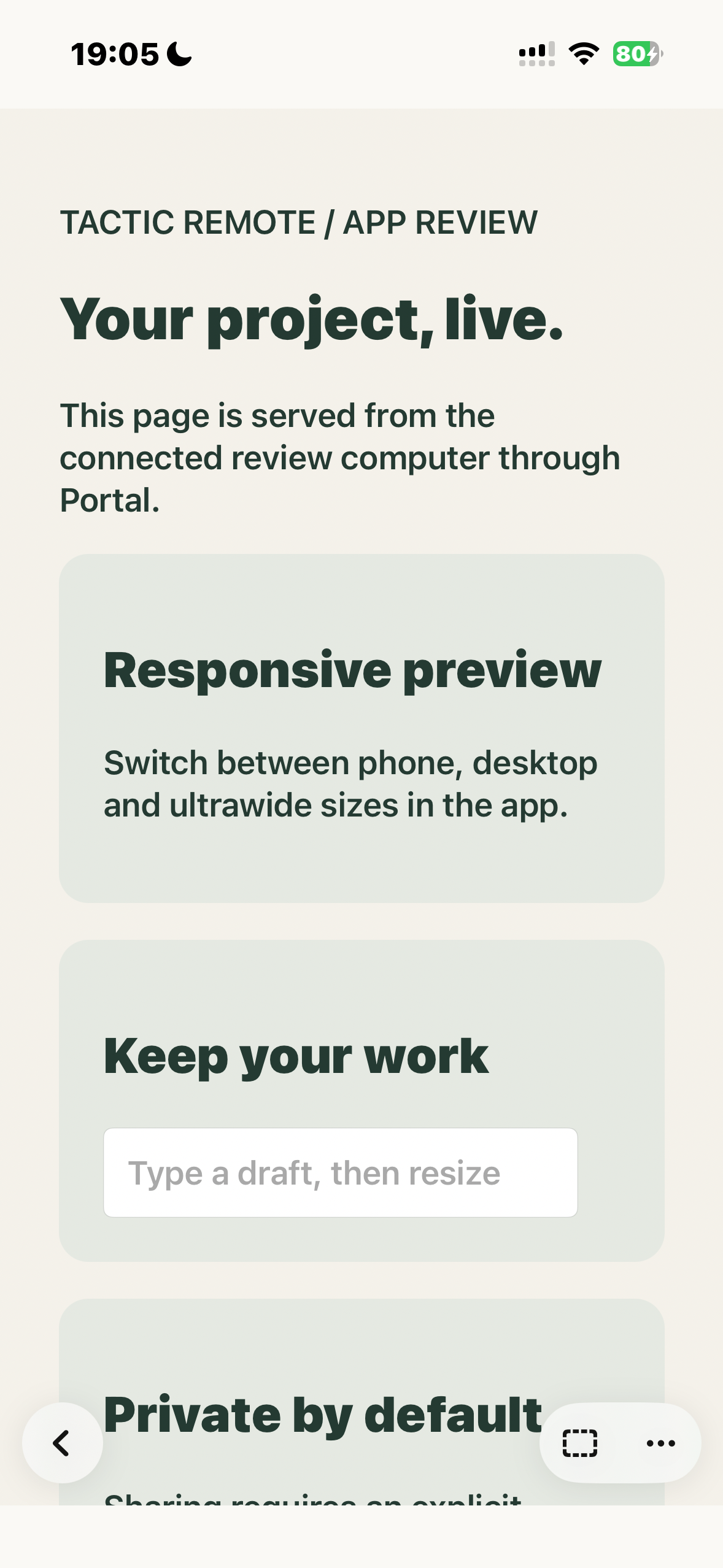
The test website opened through Portal on the iPhone. This is a synthetic test page served by a real host, not a customer project.
5. Share only if you intend to give access
This step is optional. From Preview settings, choose a link duration and read the review consent. Agreeing allows shared pages, scripts and images to be reviewed by OpenAI; private previews are not sent to that sharing review. In a supported region, Create share link can then request a link. Anyone with it can open the exposed website and configured services without a Tactic account. Use harmless data and a short duration.
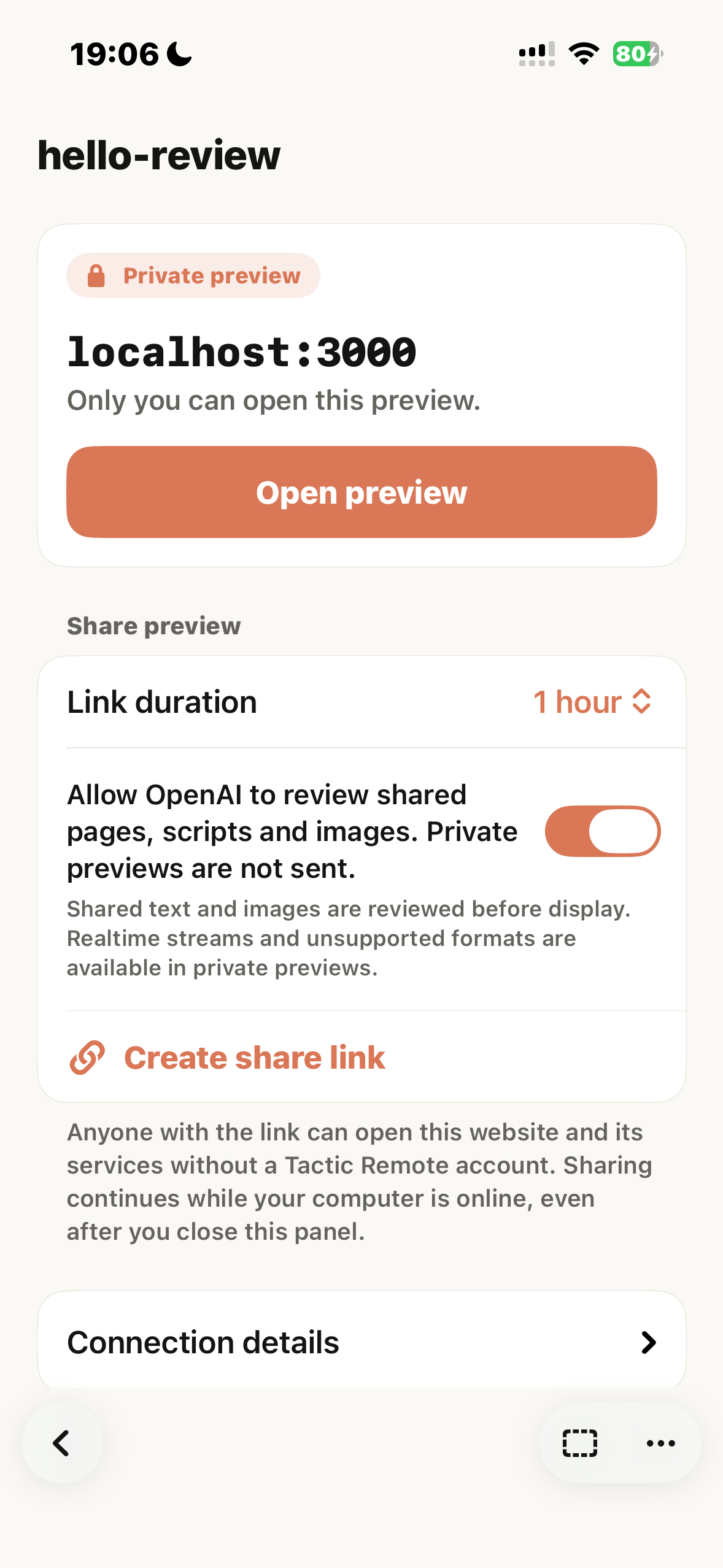
The historical test's consent screen. No new share or moderation request was created for this article revision.
Ask the intended visitor to open the link and read the visitor notice before continuing. A successful private preview does not prove that sharing review will accept every page. If you only need your own preview, leave sharing off.
6. End access when finished
Use Stop sharing to revoke the visitor link while keeping the private preview. Use Stop preview to end the whole preview. Confirm the requested action; do not confuse closing a panel with revoking an active share. In the historical test, stopping sharing made the visitor page unavailable and left the private preview running.
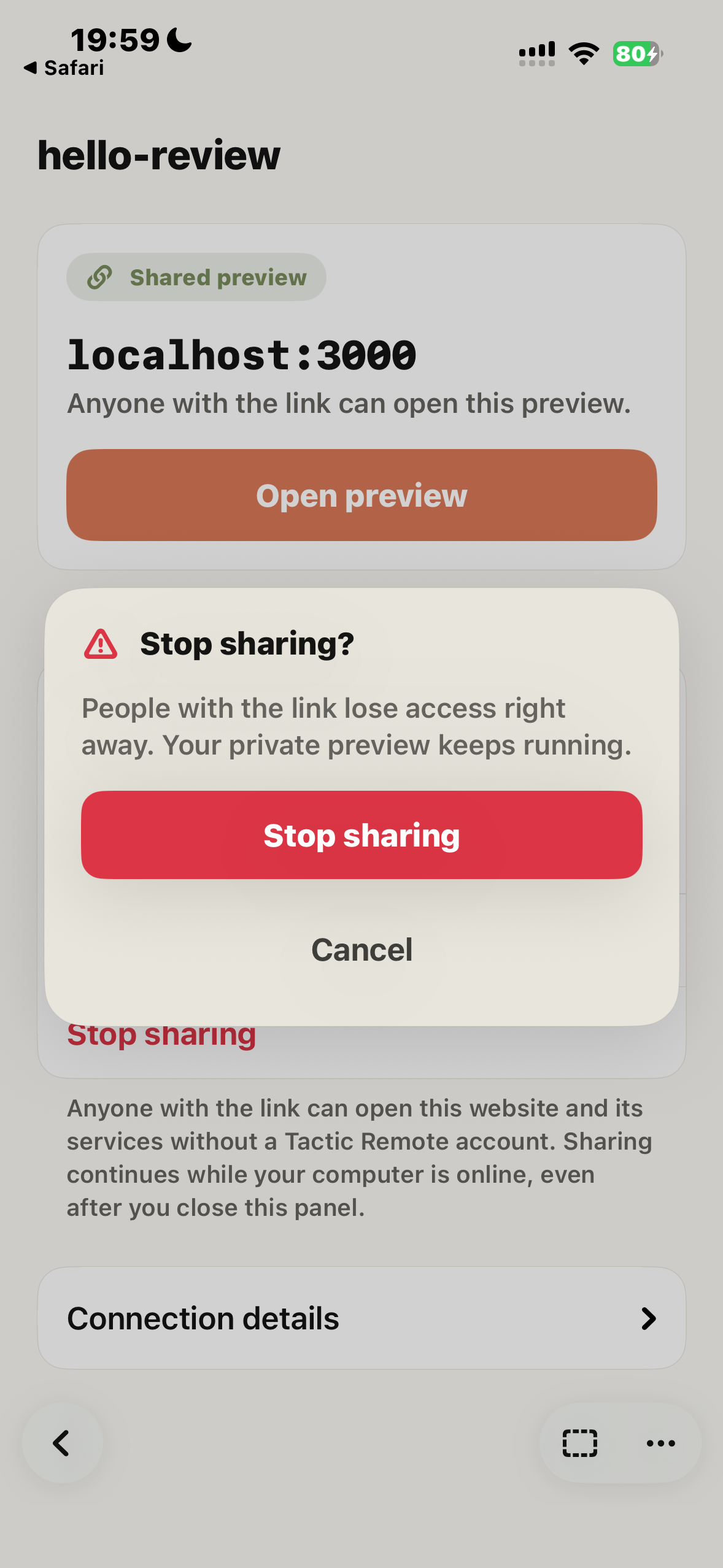
Stop sharing confirmation from the real device test. The old share is no longer active; no access token is shown.
Troubleshoot by symptom
| What you see | What to check |
|---|---|
| No website found | Confirm the server is running and the page opens on the computer; verify project and actual port, then refresh or enter it manually. Discovery does not launch the site. |
| Project not verified | Check the port yourself. A discovered listener is not proof it belongs to this project. |
| Preview unavailable | Confirm host connectivity and version. Account total: Free allows one active preview and Pro up to five; each computer host currently allows at most two, still subject to the account total. |
| Local HTTPS error | Use the correct protocol and a localhost certificate trusted by the host runtime. Do not disable certificate checks. |
| Page opens but a feature fails | Check that the website and required local backend are running. Authentication, realtime streams and framework behavior can differ; a static page check does not validate the whole app. |
| Sharing unavailable or review refused | Check region, consent, host version and the displayed reason. Keep a private preview if sharing is not supported. Do not repeatedly expose sensitive content to diagnose it. |
| Expired/stopped link or connection loss | Confirm the computer is online. A short 1.13 recovery window is not a guarantee; if the preview ended, create a new preview and share only when still intended. |
For the data flow and recovery limits, read how Portal works. The 1.13 announcement lists current platform versions and downloads.
Try Tactic Remote
Control your coding Agents from your phone
Connect to Claude Code, Codex, and other Agents on your Mac, Windows, or Linux computer. Check progress and send the next instruction from iPhone or iPad.