Blog
Using Codex on iPhone and iPad: connect your computer and continue the task
Use Tactic Remote to operate Codex CLI on your development computer from an iPhone or iPad. Using a Mac as the example, this article covers local login, QR-code pairing, choosing a project and Codex, and checking task status after a disconnection.
Follow product and engineering updates from this channel.
Browse categoryOnce Codex starts working, you often still have decisions to make: how should an empty value behave, does this change need to support old data, and was a failed test caused by the change?
You do not always need to stay at your computer for those decisions. With Tactic Remote, you can open the Codex conversation running on your development computer from an iPhone or iPad, read its output, and add requirements. The project files, dependencies, and Codex process stay on the computer.
This tutorial uses a Mac with Codex CLI installed and an iPhone or iPad as its example. Connect both devices to the same Wi-Fi network for initial pairing. If you plan to work remotely, set up remote access afterward.
For a Windows development computer, follow the Windows account and remote connection guide to sign in, bind the PC and select it on your phone. The Mac-specific setup steps below do not apply to Windows.
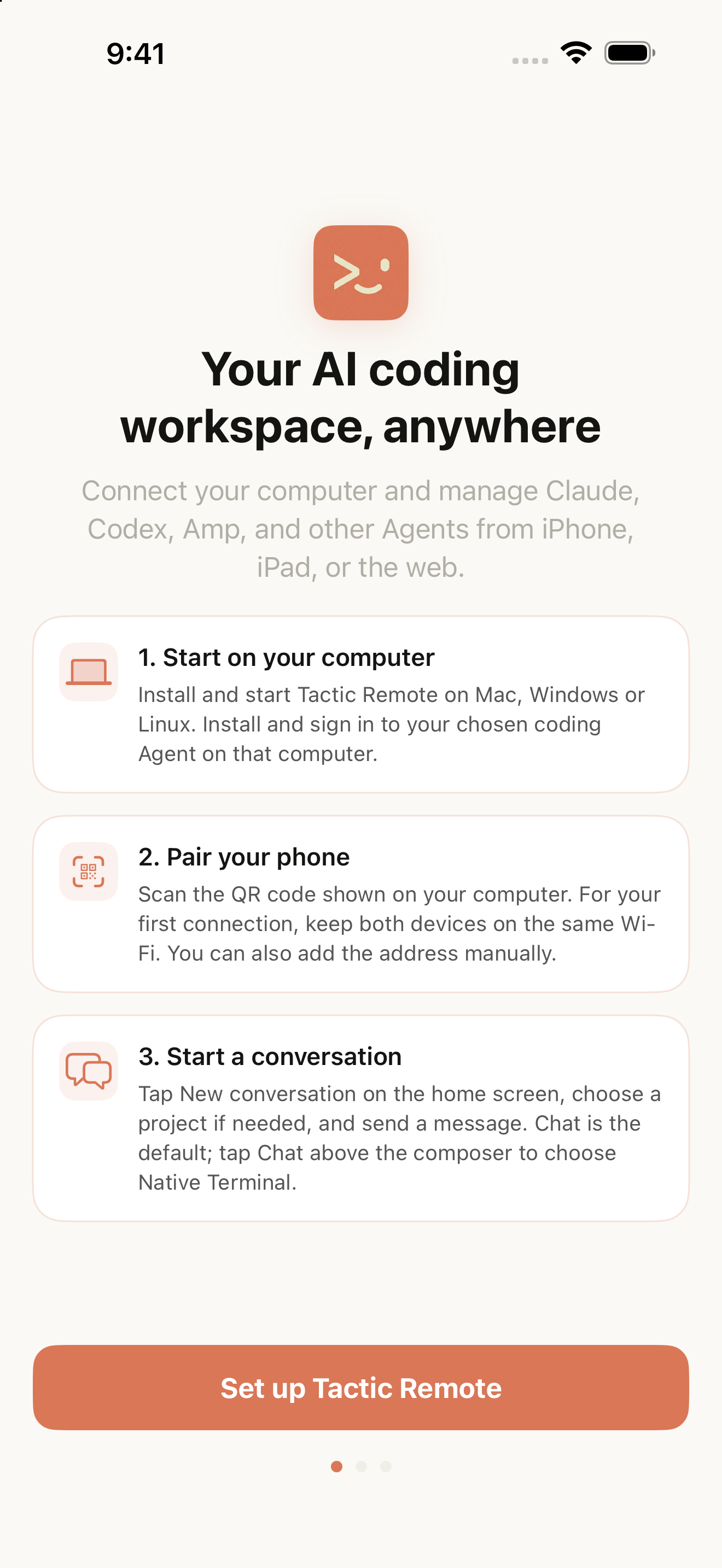
English simulator capture: start by preparing your computer and connecting a device.
Confirm that Codex is ready on the Mac
Install Codex CLI on the Mac and check the login state in Terminal:
If you are not signed in, run codex login and complete the browser authentication flow. OpenAI manages the Codex account and available usage; see the official Codex authentication documentation for the current method. Your Tactic Remote account connects devices; it does not sign you in to Codex.
Then open the target project directory in Terminal and start Codex. Ask it to inspect the project in read-only mode and explain what the project does and how to run its tests. Confirm that it can read the intended directory and is not waiting at a login prompt.
Confirming that Codex works locally first makes any later phone connection issue easier to diagnose.
Connect your phone to this Mac
Get the Mac companion app from the download page, install it, and launch it. On your iPhone or iPad, open Tactic Remote, go to the initial setup screen, tap Scan QR Code, and scan the connection QR code shown by the companion app.
For the first connection, keep both devices on the same Wi-Fi network. After the project home opens, check the current host name and connection status to confirm that you reached the computer where Codex is running.
This verifies a local-network connection. To continue from outside that network, you also need a connection method that can reach the host across networks. For Windows 1.10 account and Tactic Relay setup, follow the Windows connection guide. Before leaving, switch the phone to cellular data and confirm that it can still reach the computer.
Choose the directory first, then choose Codex
On the project home, tap the New Conversation button in the bottom right. Opening the creation screen does not start an Agent; the first request starts it.
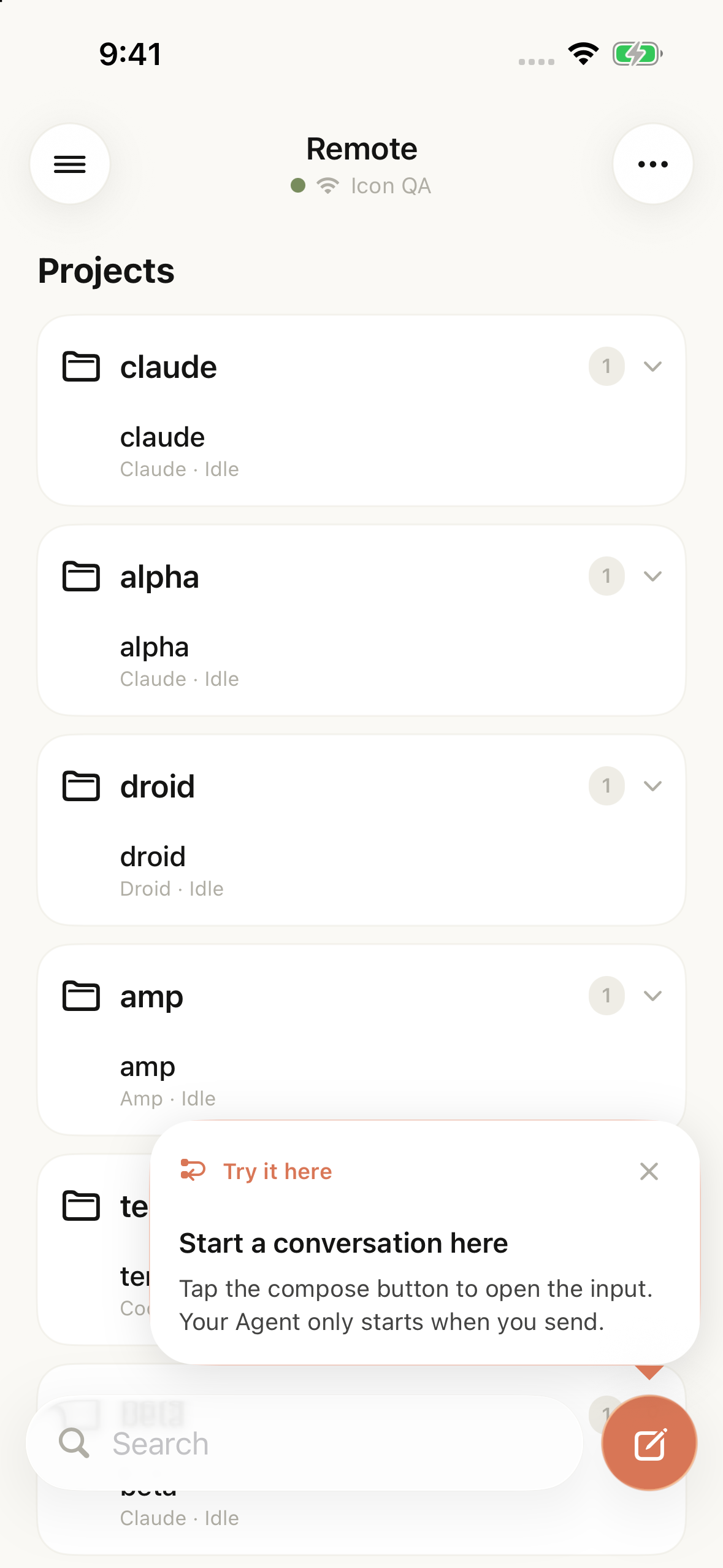
Original simulator capture from the 1.10 candidate interface. The list uses QA sample data to show the New Conversation entry point.
Before sending, check these items in order:
- Project directory. Tap the project or Independent Workspace button below the input field and choose a project from the list. If the target directory is not listed, tap Choose another folder. To change an existing repository, explicitly select that repository's directory.
- Agent. Tap the button showing the Agent name below the input field and choose Codex. You can leave the model and reasoning settings at the Agent defaults for now.
- Interaction mode. The Chat menu above the input field lets you choose Chat or native terminal mode. Start with Chat. Choose native terminal mode when you need to interact directly with the command line.
Independent Workspace is for starting a new task in a separate directory. Even if a prompt mentions a project, the system does not automatically select an existing repository. To change an existing project, select its actual directory when creating the conversation.
Send a read-only request first to confirm the directory in which the task will run:
Inspect the current project in read-only mode. First print the working directory and Git branch, then explain where the tests run from. Do not modify files.
Check that the returned directory, branch, and test command are what you expect before asking Codex to do concrete work. A reply confirms that the connection is established; checking the directory and branch helps avoid changing the wrong project.
State the completion criteria so you can check the result from your phone
Suppose the project's search box returns no results when the input contains only spaces. You can send:
Fix the search box when the input contains only spaces. Input containing only spaces should restore the full list, and spaces before or after a keyword should be ignored. Reproduce the issue first, then make the smallest change and verify input containing only spaces, a keyword with surrounding spaces, and an ordinary keyword. Preserve the existing order. When finished, list modified files, verification results, and any unconfirmed items.
This request states the completion criteria. When you check your phone later, you can directly verify whether an input containing only spaces restores the full list instead of guessing from a long process description.
Follow-up questions can stay tied to those criteria. Asking “Did you verify input containing only spaces and a keyword with leading and trailing spaces separately?” is more useful than asking “Is it done?”
Open the original conversation when you return to your phone
When you return to the app, select the same host and reopen your Codex conversation. Review the latest output before deciding on next steps.
If Codex is waiting for a product rule, state the expected behavior. If a reply says the tests passed, inspect the command that actually ran and its result. If an operation needs your decision, read the exact details first. Save a long code diff for a full review on an iPad or computer.
The conversation is still handled by Codex. To ask Claude Code to review it, open another conversation and provide the directory and code diff that need checking. A new conversation does not automatically receive the full context of the original one.
When the task reaches a stopping point, you can use this request to prepare a handoff:
Organize the result as: problem and fix, modified files, verification actually run, and anything not yet confirmed. Where I need to decide, list the specific options and the impact of each.
An iPhone works well for one or two decisions; an iPad and keyboard are better for reading the full handoff and writing a longer follow-up. Choose the device that fits the work in front of you.
When you cannot see a result, separate three states
| What you see | What to check next |
|---|---|
| The host is offline or cannot connect | Check whether the Mac is asleep, whether the companion app is running, and whether the current network can reach the host |
| Connected, but Codex has not started replying | Read the conversation output or Terminal and check CLI login, startup errors, and prompts waiting for input |
| After reconnecting, you are unsure whether the previous request arrived | Read the latest record returned by the host, confirm the Agent state, and then decide whether to resend |
After closing the phone app or losing the connection, check the conversation and process state on the development host. Read the latest record when you reconnect before sending the same request again.
This tutorial covers Codex CLI conversations created through Tactic Remote. Connecting to Codex cloud tasks or an existing task in another client requires a separate support check. Start with a small task that goes through “choose the right directory → receive output → check the result,” then expand to everyday development.
A REAL WORKFLOW. YOUR HONEST FEEDBACK.
Does this work for the way you work?
Using another tool, or tried Tactic Remote and moved on? Try one month of Pro and tell us what happened. Get three more months after a survey or interview.