Blog
Tactic Remote 1.10 in detail: Windows, account connections, and mobile workflows
Explore Tactic Remote 1.10: connect your iPhone or iPad to a Windows PC, find conversations by project, and review reusable prompts before sending. Your Agents and development environment stay on your computer.
Follow product and engineering updates from this channel.
Browse categoryA developer’s work is not over when a task is handed to an Agent.
The Agent may find two possible fixes and need you to decide what needs to remain compatible. It may finish an implementation and wait for you to inspect the result. Or it may hit an issue during testing that requires context only you have.
These questions appear at different stages of a task, and you are not always at your desk. Tactic Remote 1.10 helps you find the task, answer questions, inspect results, and decide what comes next after you leave your desk or switch devices.
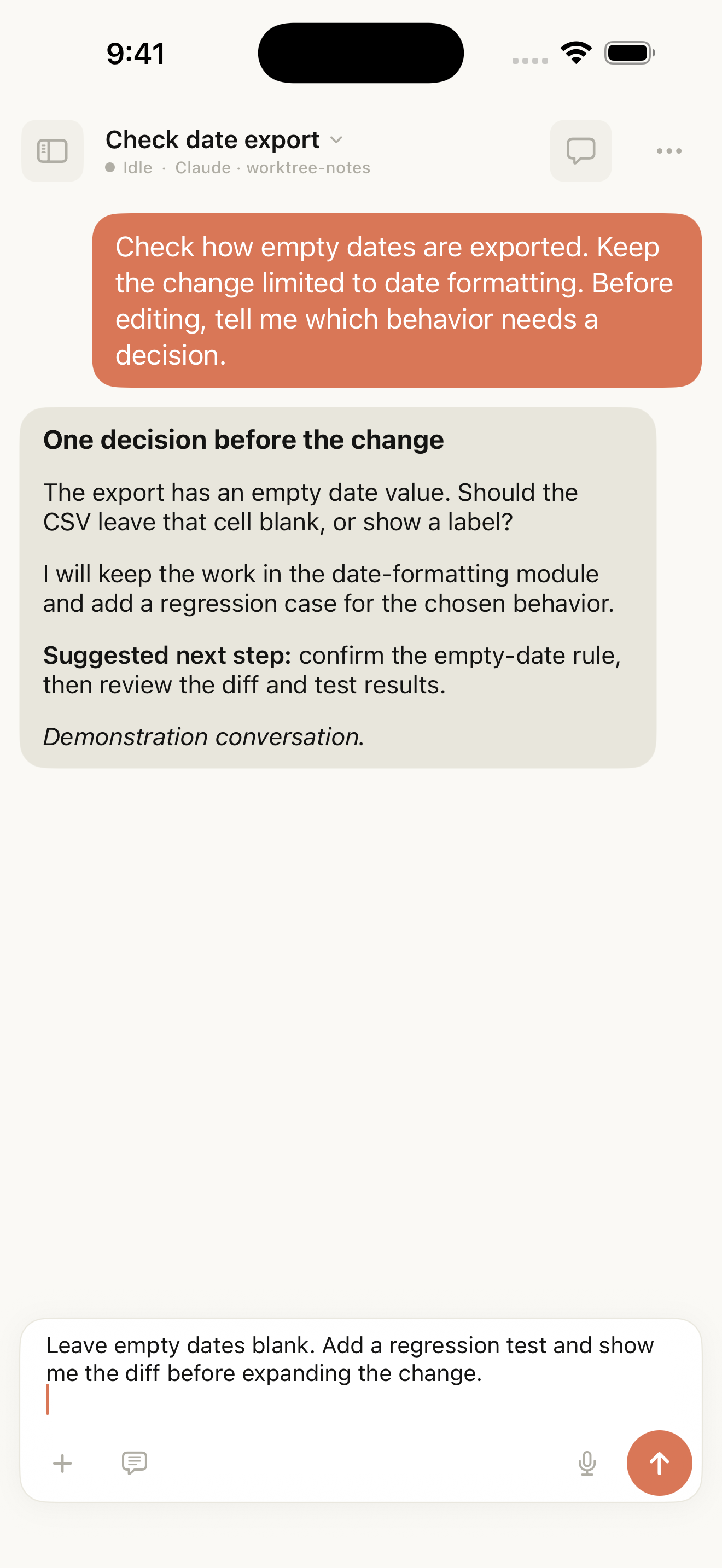
English simulator demonstration: review a follow-up in the draft before sending it.
Find your computer first, then return to the task
With one Mac, remembering a connection address is manageable. After changing networks or picking up another device, finding the address and confirming the host each time interrupts the work you meant to do.
With the Windows 1.10 companion, bind your PC to your Tactic account and enable Relay. On your phone, you can see whether that computer is online and select it to connect.
Project files, Terminal, and the Agent’s runtime environment stay on the development host. After switching devices, you can find the original project and conversation and continue using the tools and dependencies already prepared on the host.
Connect to a Windows PC from your phone
This update also improves account sign-in and remote connections in the Windows companion. Sign in to Tactic Remote on the PC, bind it to your account and enable Tactic Relay. On an iPhone or iPad using the same account, select the PC in Your Computers, then open a project and conversation.
Codex continues to use the provider account signed in on Windows. Your Tactic account connects the phone to that PC; project dependencies, the terminal, and the Agent use the environment already on the PC. Start with a familiar local project to work with the toolchain you have already set up.
Choose the directory and Agent before starting a new task
Before creating a conversation, decide which directory to use, which Agent to use, and how to interact with it. In 1.10, the creation screen brings these choices together: choose an existing project or Independent Workspace, choose an Agent, and then use Chat or native terminal mode as needed.
Claude Code, Codex, Amp, and Droid can handle tasks in separate conversations. When you reopen the workspace, confirm which Agent the current conversation uses before continuing the earlier work.
The first-use guide also follows these practical actions more closely: prepare the development computer, connect a device, enter the project, and send the first request. When you reach a particular entry point, it explains the action in front of you.
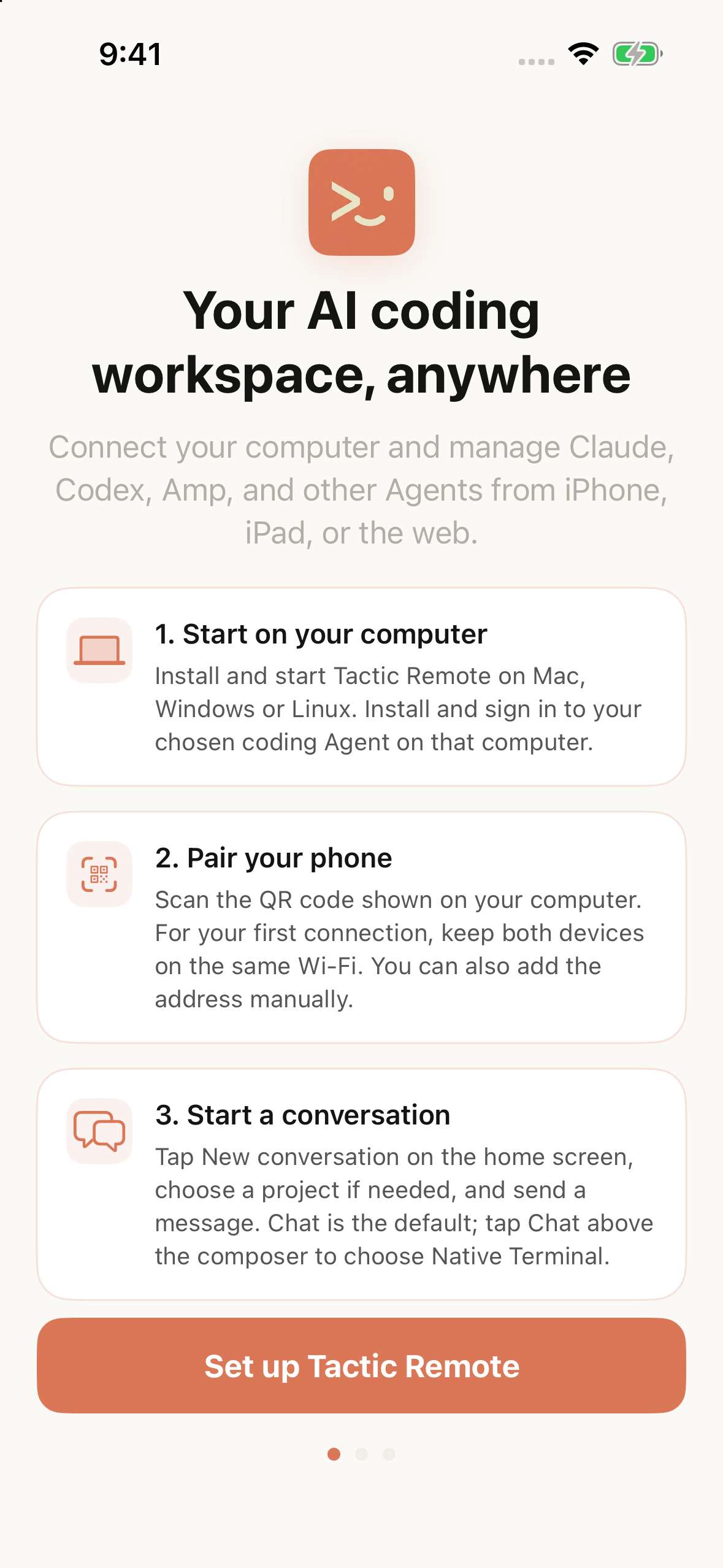
Real simulator interface from the 1.10 candidate. The first-connection example shows the local-network QR-code path.
Less repeated typing, with a chance to review before sending
Input matters when you continue a task on a phone. The command and prompt library offers content for the current Agent. Selecting an item prepares a draft so you can add project context or adjust the request before sending; it does not automatically send the message.
An existing conversation stays with its original Agent. To use another Agent, create a new conversation and choose its directory explicitly. A new conversation does not automatically inherit another Agent’s full context. Reusable instructions reduce repeated typing, but you still need to confirm scope and results.
Manage access permissions when connecting a new device
A device needs the appropriate connection credentials before it can access the development host. When a device is retired, you also need a place to find the corresponding access controls.
The 1.10 account feature associates hosts and manages authorization, while application-layer end-to-end encryption protects Relay workspace content between the client and the development host. Manual pairing remains available for the relevant setup and recovery cases. Access established through an account and access established through manual pairing need to be managed separately.
While using these features, the development host still needs to be online, and the Agent continues to use the account and runtime environment on that host. Remote viewing does not remove the need to review results: whether the task is complete still depends on the actual changes and verification.
Upgrade and get started
Current versions and installation information for each platform is available on the download page and in the changelog. When upgrading, check the client and companion-host versions together so they support the corresponding connection features.
The next time an Agent needs you to confirm a rule, open the original conversation on your phone. Review the latest output before deciding what to do next.
Try Tactic Remote
Control your coding Agents from your phone
Connect to Claude Code, Codex, and other Agents on your Mac, Windows, or Linux computer. Check progress and send the next instruction from iPhone or iPad.